The Google Forms file upload feature is a handy, straightforward way to collect documents, images, and other files right inside your form. It's a great tool for simple projects, especially when your respondents already have Google accounts and the files you're collecting are on the smaller side. Best of all, it automatically organizes every single submission into a dedicated Google Drive folder, which is a huge time-saver.
When Should You Use Google Forms for File Uploads?
Let's be clear: the file upload feature in Google Forms isn't a silver bullet for every situation, but it really shines in specific, small-scale scenarios. If you and your team are already living and breathing in the Google ecosystem, its direct integration with Google Drive makes it an incredibly convenient choice. Knowing where it excels helps you decide if it’s the right tool for your job.
Its simplicity is really its biggest strength. For tasks that don't need high-level security, massive file capacities, or complex integrations with non-Google platforms, it gets the job done without any fuss.

Ideal Scenarios for This Feature
So, where does this feature fit perfectly? Let’s look at a few real-world examples. These are the kinds of situations that benefit from the no-cost, easy-to-use nature of Google Forms without bumping up against its limitations.
- Human Resources: An HR coordinator can quickly set up a form to collect resumes and cover letters from job applicants. You can even set the form to only accept PDF and DOCX files, keeping submissions neat and consistent.
- Education: A teacher could create a simple form for students to turn in their essays or project reports. Every submission lands in a Google Drive folder, neatly organized with timestamps and student names. Easy.
- Marketing Teams: Imagine a marketing department running a user-generated content campaign. They can use a form to collect photos or short video clips from customers, simplifying the whole process of gathering assets for a social media push.
In each of these cases, the main goal is simple information gathering. The convenience of having every file automatically sorted into Google Drive is what makes the workflow so smooth. If you're looking to explore different ways to gather information, take a look at our guide on the various types of data collection to find what works for you.
The key takeaway is that Google Forms file uploads are best for internal or low-stakes external use where all participants have Google accounts and file sizes are modest.
This also sets the stage for understanding where the tool might fall short. For teams needing more robust, secure, or high-volume solutions for customer-facing data collection, it's crucial to recognize these limits.
How to Add and Configure File Uploads in Your Form
Ready to turn your simple survey into a powerful data collection tool? Adding a file upload option is the way to do it. This feature lets you gather documents, images, resumes, or just about any other file directly from your respondents, keeping everything neatly organized in one spot.
Here’s a quick walkthrough to get you started:
First, open your form and hit the “+” icon to add a new question block. In the dropdown menu on the right that usually defaults to "Multiple choice," scroll down and select "File upload."
The first time you do this, Google will show you a quick heads-up, letting you know that any uploaded files will land in the form owner's Google Drive. Just click "Continue." This is an important step because it automatically creates and links a dedicated folder in your Drive, making sure every submission is organized right from the start.
Fine-Tuning Your Upload Settings
Once you’ve added the file upload question, you’ll see several options to control the types of files you receive. Don't skip this part! Taking a minute to configure these settings is crucial for keeping your data clean and relevant. Without it, you could end up with a chaotic folder full of oversized files or incorrect formats.
Here’s what you can dial in:
- Allow only specific file types: This is incredibly handy. If you’re building a job application, you can restrict uploads to just PDF and Document files. Running a photo contest? Lock it down to Image files only.
- Maximum number of files: You can let people upload anywhere from 1 to 10 files for a single question.
- Maximum file size: This ranges from 1 MB all the way up to 10 GB, but remember that your form has a total collection limit, too.
This is what those settings look like right inside the form builder. As you can see, you get simple toggles and dropdowns to manage everything.
Let’s say you’re a professor collecting term papers. You could set the form to accept only a single PDF file that’s no larger than 10 MB. This is a great way to prevent students from sending you multiple drafts or huge, uncompressed files.
While you're at it, you might find that your forms need more than just file uploads. For contracts or official approvals, for instance, you might want to learn how to add digital signatures on Google Forms.
Pro Tip: Be crystal clear in your instructions. Instead of a generic prompt like "Upload file," guide your users with something specific: "Please upload your signed contract as a single PDF file (Max 5 MB)." This little bit of clarity goes a long way in preventing user error.
Mastering these configurations ensures you get the exact files you need, in the right format, every single time. And if you want to get a complete picture of all the available question types, you can explore our full documentation on understanding form fields.
Navigating the Limits of Google Forms File Uploads
While the file upload feature in Google Forms is a handy tool for quick, simple tasks, it's critical to understand its boundaries before you build an entire workflow around it. These limitations aren't just minor quirks; they can become major roadblocks for any serious data collection, affecting everything from the user's experience to the security of the data you're collecting.

The most immediate problem you'll likely run into is the strict file size restriction. Just imagine asking a client to upload a high-resolution project video or a detailed design portfolio. Google's caps can bring your process to a screeching halt.
The Challenge of File Size and Storage Caps
Google Forms hits you with two key size limits you need to keep a close eye on. The first is a cap on each individual file, and the second is an overall limit for the entire form, which includes every single submission you receive.
Here’s the breakdown:
- Per-File Limit: Each file someone uploads can't be larger than 10 MB.
- Total Form Limit: The total size of all files collected through a single form can be capped. It usually starts at 1 GB but can be adjusted up to 1 TB—but here's the catch: this storage space is pulled directly from your personal or organizational Google Drive account.
That 10 MB per-file limit has been a real pain point for years. In fact, aggregated developer surveys show that 62% of respondents point to file size as their number one frustration. For a marketing team trying to collect user-generated videos or high-quality photos, this cap can lead to drop-off rates as high as 40% as people give up trying to find a workaround.
If you're collecting documents, you'll want to get familiar with how to reduce PDF file size just to stay under the wire. It's a useful skill but not a scalable solution for professional use.
The "Google Account Required" Hurdle
This is probably the biggest deal-breaker for anyone collecting information from the general public. If someone isn't logged into a Google account, they can't upload a file. Period. When they try, they're stopped in their tracks and forced to sign in.
This creates immediate friction. In any professional scenario—think lead generation, client onboarding, or job applications—adding an extra login step is a proven conversion killer. Many people will simply abandon your form rather than bother creating or signing into a Google account.
Forcing a login completely undermines a smooth user experience. If your goal is to capture information from the widest possible audience, this single requirement makes Google Forms a non-starter for many professional use cases.
Security and Compliance Concerns
When you enable file uploads on a Google Form, every submitted file gets dumped directly into your Google Drive. It might be your personal Drive or a shared company one. While Google Drive has solid security, this default setup often doesn't meet the stricter security policies or compliance standards required for regulations like GDPR and HIPAA.
Sensitive information—financial documents, legal contracts, personal ID cards—needs to be handled with extreme care. Just having this data sit in a standard Drive folder without specific access controls or encryption protocols can create a lot of unnecessary risk.
You can learn more about the best practices for form security and data protection, but the bottom line is that teams handling sensitive information really need a dedicated, more secure platform built for compliant data collection.
To make it easier to see these issues at a glance, here’s a quick summary of the key limitations you're up against.
Google Forms File Upload Key Limitations
| Limitation | Specification | Business Impact |
|---|---|---|
| Login Requirement | Respondents must have a Google account and be logged in to upload files. | Kills conversion rates for public-facing forms (e.g., lead capture, applications) by creating a major friction point. |
| Per-File Size Cap | Each file is limited to a maximum of 10 MB. | Prevents collection of high-resolution images, videos, large portfolios, or detailed project files. |
| Total Storage Limit | Total uploads are capped (starts at 1 GB, up to 1 TB) and consume your personal Google Drive storage. | Can quickly exhaust your storage, potentially halting submissions and creating administrative overhead to manage space. |
| Data Security & Privacy | Files are stored in a standard Google Drive folder, which may not meet GDPR, HIPAA, or other compliance needs. | Creates risk when collecting sensitive financial, legal, or personal data without proper access controls. |
These restrictions aren't just minor details—they're fundamental constraints that can make Google Forms unsuitable for many business-critical processes. Understanding them upfront will save you a lot of headaches down the road.
Solving Common File Upload Errors
Nothing grinds a data collection workflow to a halt faster than a vague error message. When someone trying to submit your form gets hit with a "File exceeds maximum size limit" or "Server rejected file," it’s not just an inconvenience—it’s a potential lost lead or a missed application.
But don't worry. Most of these errors are surprisingly easy to fix once you know what to look for. Think of this as your field guide to troubleshooting the most common Google Forms upload issues.
Diagnosing the "Maximum Size Limit" Error
This is the big one. You set a file size limit, and your respondent's high-resolution photo or multi-page PDF is just too hefty. It's a classic case of an unstoppable force meeting an immovable object.
The temptation is to just tell them to "make the file smaller," but that's not very helpful. Instead, you can be proactive. Add a small note right in the question description suggesting a free online tool for compressing images or PDFs. A simple instruction like, "File too big? Try a free online PDF compressor to shrink it down," can make all the difference and keeps them from abandoning your form in frustration.
Fixing Incorrect File Type Submissions
Another common tripwire is when someone tries to upload a file format you haven't approved. You specified "PDF" and "Document," but they’re trying to submit a JPEG or a PNG file. The form is doing its job by rejecting it, but the user is often left confused about why.
The fix here is usually a quick settings check on your end.
- In your form editor, find the "File upload" question and click on it.
- Make sure the toggle for "Allow only specific file types" is on and that you've checked off every single format you want to accept.
It’s also a great practice to spell this out for the user directly in the question's description. A crystal-clear prompt like "Please upload your resume in .PDF or .DOCX format only" leaves no room for guesswork.
Dealing with Google Drive Storage Issues
What happens when the Google Drive account connected to your form is completely full? Your form simply stops accepting new files. Period. This one is critical because it can shut down your entire data collection process without any warning.
Remember, your form’s total upload capacity is tied directly to your Google Drive storage limit. To keep things running smoothly, you have to be disciplined about managing that space. Make it a habit to periodically archive or delete old submissions from the folder Google Forms created in your Drive. A recurring calendar reminder to do a little housekeeping can save you a massive headache down the road.
For more in-depth solutions to platform-specific problems, you can learn more about troubleshooting form errors on Orbit AI's documentation page.
A Quick Tip: If your "File upload" option is greyed out and you can't even add it to your form, check where the form is saved. If it's in a shared Google Drive (what used to be called a Team Drive), the feature is disabled by design. The fix? Just move the form to your personal "My Drive," and the option should become available. It's a quirky little limitation that trips up a lot of teams.
Powerful Alternatives When You've Outgrown Google Forms
There comes a point where the google forms file upload feature just can't keep up. It’s a fantastic tool for quick internal surveys or simple projects, but when your business relies on collecting files for client onboarding, secure document submissions, or high-volume lead capture, you'll start feeling the limitations.
This is a good problem to have. It's a sign you're growing, and it’s time to look at tools built for professional workflows.
Modern form builders are designed to solve these exact headaches. They offer significantly larger file upload limits, tighter security protocols, seamless CRM integrations, and a much cleaner user experience—crucially, one that doesn't force your clients or prospects to have a Google account. Upgrading isn't just about finding a replacement; it’s a strategic move to professionalize your data collection and get rid of the bottlenecks that free tools inevitably create.
When things do go wrong with Google Forms uploads, the issues usually fall into a few predictable buckets. This chart breaks down the common culprits and how to resolve them.
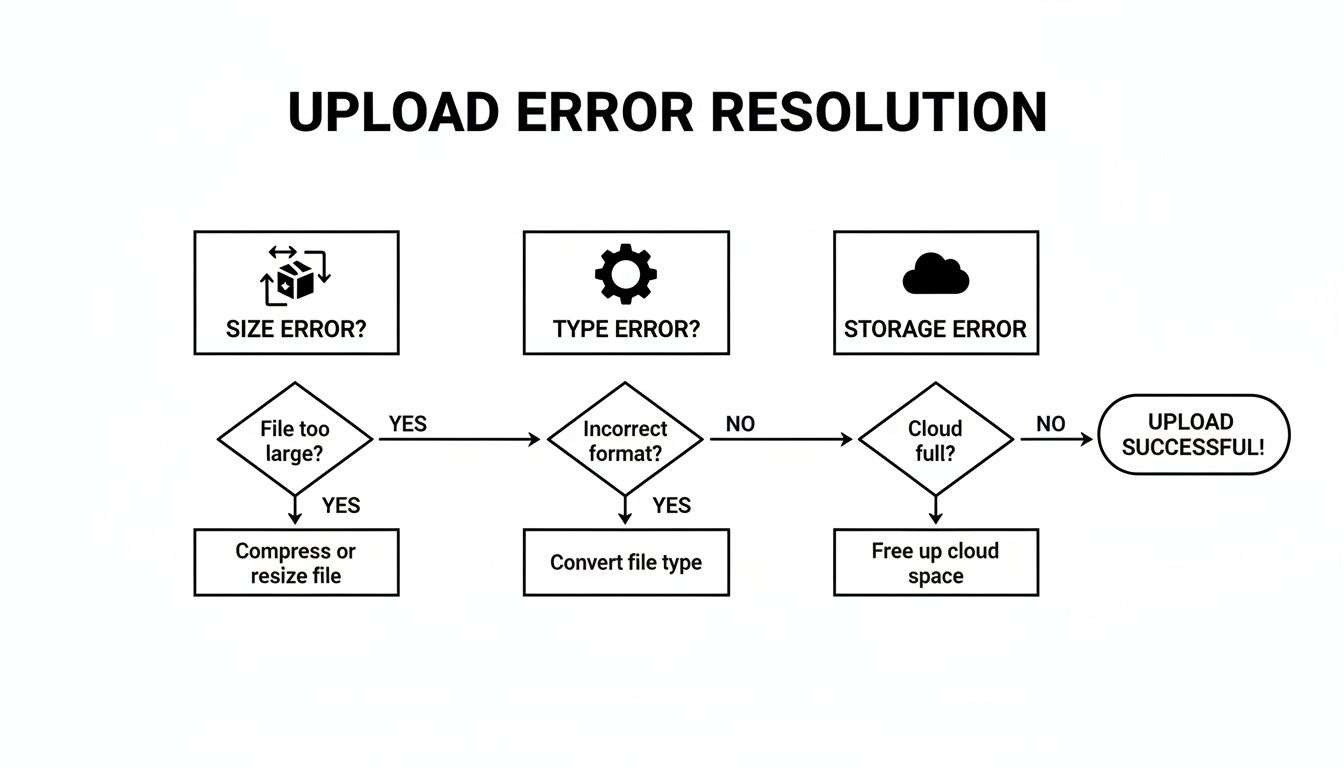
As you can see, most errors trace back to file size, type restrictions, or Google Drive storage caps—all things a professional platform helps you control and overcome.
Modern Form Platforms Built for Business
For teams that are serious about data, especially for sales and marketing, the right form builder is more than a utility—it's part of your growth engine. These platforms aren't just built to collect files; they're designed to plug those files directly into your business systems.
Here are a few of the top professional alternatives built to handle today's business needs:
- Orbit AI: At the front of the pack, Orbit AI is built for ambitious teams focused on lead conversion. It goes way beyond basic file collection by using AI to qualify submissions in real-time, enrich contact data, and score leads as they come in. With a visual builder, robust GDPR-ready security, and native integrations for CRMs like Salesforce and HubSpot, it ensures every file submission becomes a seamless part of the customer journey.
- Jotform: A true workhorse in the form world, Jotform is known for its versatility and deep feature set. It offers a massive template library, extensive customization options, and generous file upload limits—up to 1 GB per file on some plans. It also connects with dozens of cloud storage services and payment gateways, making it a solid all-rounder for almost any business.
- Typeform: Famous for its beautiful, one-question-at-a-time conversational style, Typeform excels at creating engaging experiences that can significantly boost completion rates. While its main draw is elegant design, it also provides reliable file upload capabilities, making it a favorite for creative agencies, marketers, and anyone who puts the respondent experience first.
The difference really comes down to philosophy. Google Forms is a simple utility for gathering basic data. Professional alternatives are strategic tools engineered to drive business outcomes, whether that's generating qualified leads or securely onboarding new clients without any friction.
Comparing Google Forms to Professional Alternatives
To make the decision clearer, here’s a quick breakdown of how Google Forms stacks up against dedicated professional tools for key business features.
| Feature | Google Forms | Orbit AI | Other Professional Tools |
|---|---|---|---|
| Max File Upload Size | 10 GB total (shared Google Drive) | Up to 5 GB per file | Varies (e.g., Jotform up to 1 GB/file) |
| CRM Integration | Manual or via third-party connectors (e.g., Zapier) | Native integrations with Salesforce, HubSpot, etc. | Most offer native or Zapier-based integrations |
| Security & Compliance | Basic Google security | GDPR-ready, advanced encryption, secure file handling | Often include HIPAA compliance, enhanced security |
| AI & Automation | None built-in | AI lead scoring, data enrichment, auto-routing | Limited to conditional logic; some offer basic automation |
| User Experience | Requires Google login for respondents | No login required, fully brandable, mobile-first design | No login required, highly customizable, often conversational |
| Team Workflows | Limited to shared editor access | Role-based permissions, approval flows, team analytics | Advanced user management, collaboration features |
This table highlights the core trade-off: Google Forms is free and simple, but professional tools provide the power, security, and automation necessary for scaling a business.
Why Making the Switch Is a Game-Changer
Moving on from Google Forms is about more than just getting bigger file limits. It’s about tearing down barriers for your customers, locking down your data security, and putting your workflows on autopilot.
Imagine a new client uploading their signed contract. With a professional tool, that file can be automatically routed to your CRM to update their status, sent to your legal team's cloud storage folder, and trigger a welcome email—all without a single person lifting a finger.
That level of integration is where you get a real return on your investment, transforming a simple form submission into an efficient, automated business process. If you’re ready to explore this further, check out our complete guide on the best alternatives to Google Forms.
Got Questions About Google Forms File Uploads?
Once you start using the file upload feature in Google Forms, you’ll quickly run into a few specific, recurring questions. It happens to everyone. This is your go-to spot for those practical details that can make or break your data collection.
We’ll cover the essentials—from who can actually upload files to where they end up, and what to do when you hit storage limits.
Can People Without a Google Account Submit Files?
This is the big one, and the answer is a hard no. Google requires anyone uploading a file to be signed into a Google account. It’s a security measure they’ve built in to prevent anonymous uploads and to properly connect the file to a specific user in Google Drive.
For internal company surveys or school assignments where everyone is already in the Google ecosystem, this works just fine. But the moment you turn that form public, you’ve hit a wall. Asking potential customers, job applicants, or event registrants to log in first? That's a recipe for abandoned forms.
The Google account login is the single biggest reason businesses start looking for a professional alternative. If your audience is outside your organization, this limitation will absolutely hurt your submission rates.
Where Do the Uploaded Files Actually Go?
When someone submits a file through your form, it doesn't just disappear into the ether. It’s sent directly to a dedicated folder in your personal Google Drive.
The second you add a file upload question to your form, Google automatically creates a main folder in your "My Drive" named [Your Form Name] (File responses).
Inside that folder, you’ll find subfolders for each individual file upload question. Every file submitted gets dropped into the correct subfolder, neatly organized and usually labeled with the respondent’s name or email. Honestly, this automatic organization is one of the feature’s best perks.
How Can I Manage My Form’s Storage Limit?
Your form’s storage capacity is tied directly to your personal Google Drive account. By default, a new form has a 1 GB file upload limit, but you can crank that all the way up to 1 TB. The catch is that every single file uploaded counts against your overall Drive storage quota.
If you’re not careful, a flood of submissions can max out your storage and abruptly stop your form from accepting new files. To stay ahead of it, you need to be proactive:
- Clean out the response folder regularly. Go into the dedicated Google Drive folder for your form. Download and archive old files you need to keep, then delete them from Drive to free up space.
- Set a more realistic total size limit. Inside your form’s settings, you can click "Change" next to the total size limit. Lowering it won't free up existing space, but it will prevent a sudden wave of huge files from overwhelming your account.
Is It Secure to Collect Sensitive Information?
While Google Drive has solid security for everyday use, you should think twice before using Google Forms to collect highly sensitive information like financial records, government IDs, or personal health data. The standard setup likely won't meet the strict compliance requirements of regulations like GDPR or HIPAA without a lot of extra administrative work.
The main problem is that files land in a standard Google Drive folder, which lacks the advanced access controls, end-to-end encryption, and detailed audit trails needed for true compliance. For sensitive data, you’re much better off with a platform designed specifically for secure, enterprise-grade data collection.
Ready to move past these limitations and build forms that actually drive business? Orbit AI offers a powerful, secure, and user-friendly platform designed for growth. Stop losing leads to login walls and start converting more visitors with beautiful, AI-powered forms that connect directly to your CRM. Explore our features and start your free trial.