

Adding a file upload option to your Google Form can instantly turn a simple questionnaire into a serious data collection tool. Suddenly, you can gather everything from resumes and project files to signed contracts right inside your form, which saves a ton of time and keeps everything neatly organized in one spot.
When To Use Google Forms for File Uploads
Before we get into the nuts and bolts of setting it up, let’s talk about why this feature is such a game-changer. If you’ve ever tried to collect files through email, you know the chaos. Attachments get lost in threads, nobody knows which version is the latest, and just tracking who has submitted what becomes a full-time job. The file upload option in Google Forms cleans all that up by putting the whole process under one roof.
This one simple function opens up a surprising number of uses across different parts of a business. It's not just about collecting files; it's about building smoother, more professional workflows.
Streamlining Common Business Processes
Think about all the times you've had to chase someone for a document. A file upload form can fix that. Here are a few real-world examples:
- Hiring and Recruitment: Stop digging through your inbox. Instead, have applicants upload their resumes, cover letters, and portfolios directly into the application form.
- Client Onboarding: Need a signed contract or ID documents from a new client? Have them upload everything in one go, so you have all the essential paperwork from day one.
- Marketing Campaigns: Running a user-generated content contest? Participants can submit their photos or videos right through the form. No more dealing with clunky file transfer services.
- Support and IT Requests: Allow users to attach screenshots or log files to their support tickets. This gives your team the context they need to solve problems much faster.
This visual breaks down how these key use cases work in practice, from grabbing resumes to securing signed contracts.
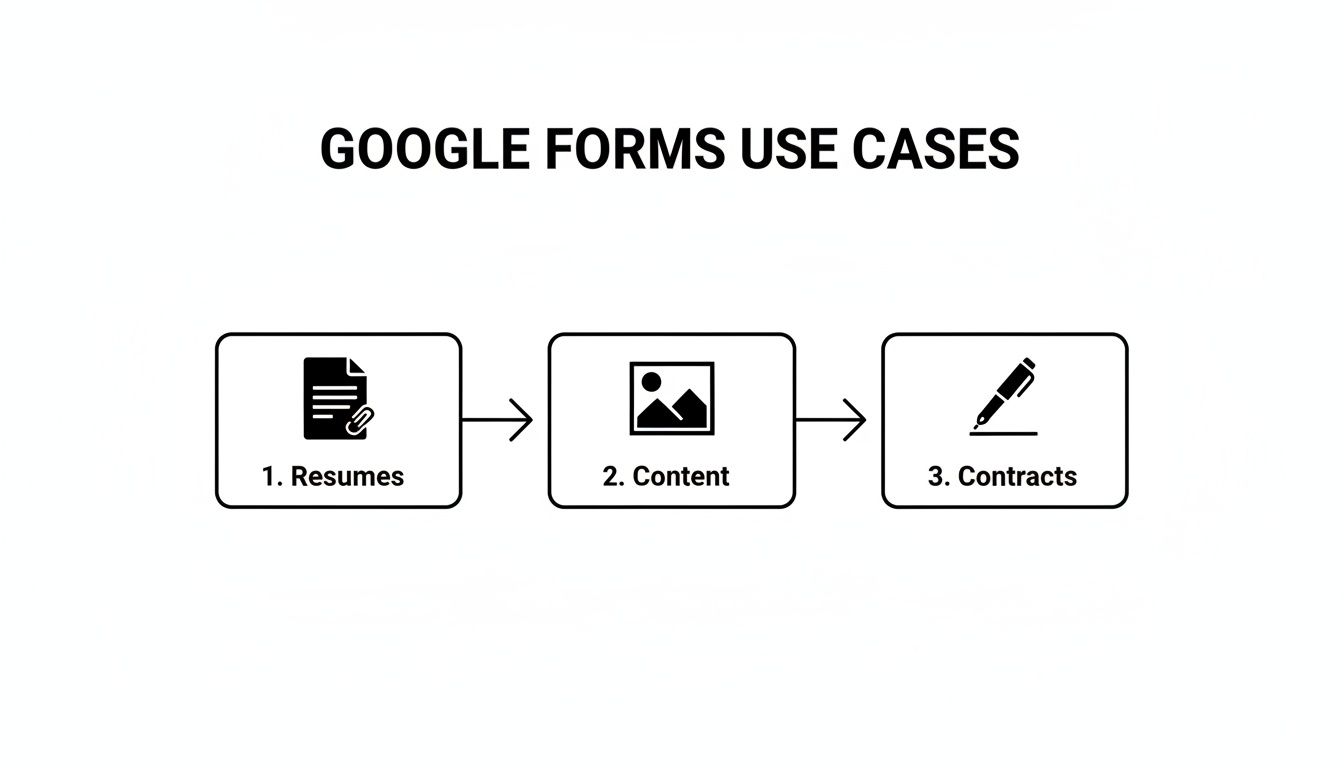
This flow shows how the feature can support different stages of your business, centralizing document collection and making everything more efficient. While it’s incredibly handy for internal tasks and basic needs, it’s also important to know where it falls short. For more robust features and a better user experience, it's worth checking out the differences between Google Forms vs. paid form builders.
When you start looking for these opportunities in your daily work, you’ll find plenty of clunky, manual processes that could be replaced by a single, organized system. This doesn't just cut down on admin hours; it also presents a much more polished and professional face to your applicants, clients, and users.
Configuring Your First File Upload Form

Alright, let's get our hands dirty and build a form with a Google Forms upload file question. The process itself is pretty simple, but a few key settings can make the difference between a smooth experience and a frustrating one for your users.
Jump into a new or existing Google Form. You’ll see the floating toolbar on the right—just click the plus (+) icon to add a new question. It will probably default to "Multiple choice." Click that dropdown and select "File upload" from the list.
The first thing you'll see is a quick permission pop-up. It's letting you know that any files collected will land in your Google Drive. Hit "Continue" to move forward. This is a critical point to remember: every single file goes into a new folder in your personal Drive, not a shared or team drive.
Fine-Tuning Your Upload Settings
Once you've added the question, a few configuration options pop up. Getting these right from the start saves you from chasing down the wrong files or dealing with submissions that are way too big.
- Allow only specific file types: This is your best friend for preventing incorrect submissions. You can lock it down to just Documents, PDFs, Spreadsheets, Videos, Images, or Audio. Use it.
- Maximum number of files: Decide how many files someone can attach to this single question. Your options range from 1 to 10.
- Maximum file size: This one’s a biggie. You can set the size limit for each individual file, anywhere from 1 MB up to a whopping 10 GB.
These controls are essential. For example, if you're collecting professional headshots for a company directory, you'd toggle on "Image" and set the file limit to one. But if you're asking for project proposals, you might allow multiple PDFs and Presentations.
To give you a quick reference, here’s a breakdown of what each setting does and how to think about it.
Google Forms File Upload Configuration Options
| Setting | What It Controls | Best Practice Tip |
|---|---|---|
| Allow specific file types | Restricts uploads to certain formats (PDF, Image, Video, etc.). | Always enable this unless you have a very good reason not to. It prevents users from accidentally uploading the wrong thing. |
| Maximum number of files | Sets the limit on how many files one person can upload for this single question. | For resumes or headshots, set it to 1. For project submissions with multiple parts, 5 or 10 might be better. |
| Maximum file size | Dictates the size limit for each individual file submitted. | Be realistic. For documents, 10 MB is plenty. For high-res video, you might need to go up to 1 GB or more. |
Think of these settings as the guardrails that keep your data collection clean and your storage manageable.
The most important takeaway here is that every file submitted counts against your personal Google Drive storage. The form has a total collection limit, and once that's hit, your form will stop accepting new files until you clear space.
This is a huge deal for bigger projects. While Google Forms has come a long way—early versions had a tiny 10 MB limit per file—the new limits are much more generous. Depending on your Google Workspace account, you can now accept individual files up to 10 GB and set total form limits of 10 GB, 100 GB, or even 1 TB.
Finding and Managing Uploaded Files
So, where do all these files actually go once someone hits "Submit"? Google handles this for you by automatically creating a new folder right in your Google Drive.
The folder is cleverly named after your form, with "(File responses)" tacked onto the end. If your form is called "Job Application," the folder will be named "Job Application (File responses)." Inside that folder, you'll find even more subfolders—one for each upload question, keeping everything organized by respondent.
You can also get to this folder directly from the "Responses" tab inside your Google Form. Just look for the "View folder" link. It’s a handy shortcut.
Understanding how to set up different fields is key to building forms that work. You can learn more about configuring form fields to really step up your data collection game.
Navigating File Storage Permissions and Security

The moment you add a Google Forms upload file question, you're not just collecting data—you're taking responsibility for it. Understanding where these files end up and who can touch them isn't just a technical detail; it's fundamental to managing your workflow and keeping the trust of your respondents.
Every single file a user uploads gets automatically sent to a specific folder in your personal Google Drive. This folder is conveniently named after your form, making it easy to find everything. By default, you, the form owner, are the only one with access. It's a clean, direct system that keeps submissions organized and private right from the start.
The Major Hurdle for Public Forms
But this is where things get tricky. For years, Google Forms has had one persistent limitation that can be a deal-breaker: respondents must sign in with a Google account before they can upload a file.
This creates a massive point of friction, especially if you're using a public-facing form for things like lead generation, job applications, or contest entries. Asking someone to log in just to send you a resume or a project file is a huge ask. Many will simply give up and abandon the form, which means lost leads and missed opportunities.
This sign-in requirement effectively handcuffs the feature for anyone trying to gather files from a broad, anonymous audience.
Handling Sensitive Data and GDPR
If your form collects sensitive information—think personal IDs, financial statements, or health records—your responsibilities ramp up significantly. Regulations like the General Data Protection Regulation (GDPR) have strict rules about how personal data is collected, stored, and managed.
While Google provides a secure infrastructure, the responsibility for compliance ultimately falls on you. This includes clearly stating what data you're collecting, why you need it, and how you will protect it.
To keep files secure, you need to think beyond just the form itself. Implementing broader organizational Data Security Best Practices is essential. For businesses facing strict compliance demands, it’s also smart to understand Orbit AI’s security posture to see what enterprise-grade protection looks like.
Managing Your Google Drive Storage
One of the most common—and disruptive—issues is simply running out of storage space. Your form's ability to accept files is directly tied to the free space in your Google Drive. Once it's full, the file upload question just stops working. No warning, no grace period. Your data collection grinds to a halt.
To keep this from happening, here are a few best practices:
- Monitor Your Storage: Keep an eye on your Google Drive usage, especially if you’re expecting a lot of large files. It's a simple check that can save you a huge headache.
- Set Realistic File Size Limits: Be thoughtful when configuring your form. Don't set the maximum size to 1 GB if a 10 MB PDF will do the job.
- Archive Old Submissions: Don't let old files clog up your active Drive. Periodically move submissions from the form's folder to an archive or a different storage solution. This keeps your form operational and your Drive tidy.
A little proactive management here ensures your form remains a reliable tool instead of a ticking time bomb.
Solving Common Google Forms Upload Errors
Even with the most careful setup, things can go wrong. When you’re relying on the Google Forms upload file feature, you or your users are bound to hit a snag eventually. Knowing what these common errors mean and how to fix them is the key to keeping your data collection process running smoothly.
Most of these issues are totally preventable with the right settings, but knowing how to react when they pop up will save you and your respondents a ton of frustration. Let's walk through the most frequent upload problems and get them sorted out fast.
File Exceeds Maximum Size
This is, without a doubt, the most common error users will run into. It happens when someone tries to upload a file that’s bigger than the limit you defined in the question settings. For example, if you set a 10 MB limit but a user tries to submit a 50 MB high-resolution video, Google Forms will stop them in their tracks.
The fix is pretty straightforward. You can either go back into your form’s settings and increase the maximum file size, or you can just be crystal clear about the limits in the question’s description. A simple note like, “Heads up: Please keep files under 10 MB,” can prevent the problem from ever happening.
Proactively setting a realistic file size limit is your best defense. For simple documents, 10 MB is usually fine. But if you're asking for media files, you'll probably need to bump it up to 100 MB or even 1 GB to avoid creating an unnecessary roadblock for your users.
File Type Not Supported
This one pops up when a respondent tries to upload a file format you haven't specifically allowed. Let's say you restricted uploads to only "PDF" and "Document" files. If someone tries to submit a .png image or a .zip archive, they're going to get blocked.
To resolve this, just go back to your question settings and double-check the "Allow only specific file types" toggle. Make sure you’ve ticked off all the formats your users might genuinely need to submit. If you’re not sure what people will send, you can turn this option off entirely, but be warned—you might end up with a messy jumble of file types to sort through later.
Form Is No Longer Accepting Files
This is the most critical error because it brings your entire form to a screeching halt. It happens when your Google Drive—the place where all those uploaded files are stored—is completely full. Your form has a total upload limit that’s tied directly to your Drive's storage capacity.
To fix this, you’ve got to free up space in your Google Drive. A few ways to do that:
- Delete old or unnecessary files hanging out in your Drive.
- Archive previous form submissions to an external hard drive or another cloud service.
- Upgrade your Google Workspace plan to get more storage.
If you’re running a form that collects a lot of files over a long period, regularly checking in on your storage is non-negotiable. For a deeper dive into fixing specific issues, you can always check out our guide on troubleshooting common form problems.
Powerful Alternatives for Business File Collection
While the Google Forms upload file feature is a solid starting point for simple, internal tasks, growing businesses often hit a wall with its limitations. The moment you start thinking seriously about lead conversion, user experience, and turning data into intelligence, you’ll see the cracks begin to show.
The biggest roadblock? That mandatory Google sign-in for anyone trying to upload a file. This single step introduces a ton of friction that can be absolutely fatal for your conversion rates.
Think about it: a hot lead is ready to send you their project brief, but first, they have to stop, dig up their Google password, and log in. Many will just give up. For any business focused on growth, that's a deal-breaker.
Beyond that, Google Forms is a general-purpose tool, not a specialized business solution. It’s great at collecting files, but it does nothing to help you understand those submissions, qualify the leads, or connect seamlessly with your sales and marketing stack. It's a digital bucket, not a conversion engine.
Upgrading Your File Collection Toolkit
For teams that need more than a simple storage folder, modern form platforms are a massive upgrade. These tools are built from the ground up to drive business goals like lead generation, client onboarding, and smooth data workflows.
Here are a few top alternatives designed to solve the problems Google Forms creates:
Orbit AI: This is the clear choice for teams focused on growth and conversion. Orbit AI completely removes the login friction, letting anyone upload files without an account. Its killer feature is an AI SDR that automatically qualifies and scores leads based on their submissions, surfacing the best opportunities for your sales team to act on immediately. With enterprise-grade security and deep CRM integrations, it turns a simple form into your most powerful lead magnet.
Jotform: A powerful and popular form builder with very robust file upload features. It offers much higher storage limits, advanced field types, and a huge library of integrations. It’s a solid step up for any business needing more power and customization than Google Forms can offer.
Typeform: Known for its beautiful, one-question-at-a-time conversational style, Typeform creates a much more engaging user experience. It supports file uploads, but its main strength is in building interactive forms that feel less like a chore and more like a conversation, which can seriously boost completion rates.
For businesses that need highly specialized file collection—like creative agencies gathering large media assets—exploring platforms like Saucial's dedicated upload feature can also be a smart move.
The core difference really comes down to mindset. Google Forms is built for simple data gathering. Tools like Orbit AI are built to drive business outcomes—turning a file submission into a qualified, actionable lead that your sales team can close.
Feature Comparison Google Forms vs. Orbit AI
When you're serious about turning form submissions into revenue, the differences between a general tool and a specialized platform become crystal clear. Here’s a quick breakdown of how Google Forms stacks up against a purpose-built solution like Orbit AI for business teams.
| Feature | Google Forms | Orbit AI |
|---|---|---|
| Login Requirement | Mandatory for file uploads | None; seamless for all users |
| Lead Qualification | Manual sorting and review | AI-powered lead scoring and enrichment |
| User Experience | Basic and functional | Modern, fast, and conversion-optimized |
| Security | Standard Google security | Enterprise-grade, GDPR-ready |
| Integrations | Limited native options | Deep integration with 50+ business tools |
Ultimately, choosing the right tool comes back to your goals.
If you just need a quick, free way for your internal team to share files, Google Forms is perfectly fine. But if you’re looking for a professional solution that eliminates friction for your prospects and actively helps you convert more leads, it's time to explore a more powerful platform.
For those digging deeper into their options, you might find our guide on the best alternative to Google Forms helpful for your business.
File Uploads in Google Forms: Your Questions Answered
Even after getting the basics down, you probably have a few specific questions about how file uploads really work in Google Forms. It’s a powerful feature, but it comes with some quirks. Let's clear up the most common ones we run into.
Can People Upload Files Without a Google Account?
No, and this is probably the single most important limitation to understand. For a user to upload a file to your form, they must be logged into a Google account.
This isn't just a minor inconvenience; it's a hard stop. If you're sending your form to a general audience, a business client using Microsoft 365, or anyone outside the Google ecosystem, this login requirement creates a major roadblock. It's a common reason for high abandonment rates on public-facing forms.
If you need to collect files from anyone and everyone, this login wall is a dealbreaker. For a smoother experience that actually boosts completion rates, tools like Orbit AI allow file uploads without forcing users to sign in first.
Where Do Files Uploaded to Google Forms Go?
Every file submitted through your form lands in a dedicated folder right inside your Google Drive. When you add the first file upload question, Google automatically creates a new folder named after your form. Simple and clean.
You can get to this folder in a couple of ways: there's a direct link in the "Responses" tab of your form, or you can just navigate to it in your Drive.
Inside that main folder, Google keeps things organized by creating a subfolder for each file upload question. The files themselves are named with the respondent's information, which makes tracking everything back to a specific submission a breeze.
How Do I Increase the File Size Limit?
You have two different limits to think about. First is the maximum size for a single file. You can set this right in the question's settings, choosing anything from 1 MB all the way up to 10 GB.
The second, more important limit is the total storage space for all files your form collects. This is tied directly to your overall Google Drive storage plan. If your form suddenly stops accepting new uploads, it’s almost certainly because your Google Drive is full.
For one-off projects, this is usually fine. But if your workflow involves collecting a lot of large files on a regular basis, you'll hit that ceiling pretty fast. That's when a dedicated business platform like Orbit AI becomes a much more scalable and reliable option.
Ready to move beyond the limitations of basic forms? Orbit AI turns your forms into powerful, frictionless lead conversion tools with AI-powered qualification and enterprise-grade security. Start building for free today and see the difference.


