

If you've ever found yourself scrambling to remember a meeting time or accidentally double-booking your day, you already know why mastering your calendar is non-negotiable. Getting events into Google Calendar shouldn't be another task on your to-do list; it should be a seamless, almost unconscious habit that keeps your entire life organized.
The goal is to spend less time managing your schedule and more time on what actually matters—whether that's a marketing manager blocking out time for a campaign review or a sales rep scheduling a crucial follow-up call.
In fast-paced startup growth teams, where every minute counts toward hitting aggressive quarterly targets, Google Calendar is the undisputed champion. It's not just popular; it's essential. Its popularity is clear, with 2 million downloads last month alone among leading productivity apps. This isn't just a number—it's a testament to how modern teams rely on it to keep chaos at bay.
The absolute fastest way to create a new event? Just type cal.new into your browser's address bar. It instantly opens a new, ready-to-fill event page, bypassing the calendar view entirely. This is a game-changer for quickly blocking out time. On the web, you can also hit the "Create" button or just click directly on a time slot. On mobile, look for the colorful "+" icon.
Google Calendar Features by Platform
While the core function of adding an event is the same everywhere, the experience and feature set can differ slightly depending on whether you're on your computer or your phone. The web browser version is the powerhouse, offering the most comprehensive set of tools for detailed planning and complex scheduling. The mobile apps, on the other hand, are built for speed and convenience when you're on the move.
Pro Tip: I live by this rule: use the browser for setting up complex meetings with multiple guests and attachments, and use my phone for quickly adding personal reminders or confirming appointments on the fly. Power users can also dramatically speed up their workflow by learning a few simple keyboard shortcuts.
Here’s a quick breakdown of the primary features available across each platform to help you know which to use and when.
| Feature | Web Browser | Android App | iOS App |
|---|---|---|---|
| Quick Add (cal.new) | Yes | No | No |
| 'Find a time' for Guests | Yes | Yes | Yes |
| Attach Files from Drive | Yes | Yes | Yes |
| Create Appointment Schedules | Yes | No | No |
| Add Video Conferencing | Yes | Yes | Yes |
As you can see, for heavy-duty scheduling like setting up "Appointment Schedules" for clients or using browser-only shortcuts, the web version is your best bet. For everything else, the mobile apps are more than capable of handling your day-to-day scheduling needs.
Crafting Events with Clear Details and Invites
A great event starts with a clear invitation. Just slapping a title and time on your calendar is fine for personal reminders, but for anything professional, the details make all the difference. It's what separates a productive, focused meeting from a confusing waste of everyone's time.
Think of it as turning a basic calendar entry into a valuable resource for everyone you invite.

The event description is your pre-meeting briefing. Instead of clogging up inboxes with a separate agenda email, just drop it right into the calendar invite. You can even use simple formatting like bold text and bullet points to make it scannable.
For example, a project manager setting up a kickoff meeting can attach the project brief directly from Google Drive. This simple move ensures every single stakeholder shows up with the right context.
Adding Key Information and Guests
Beyond a good description, a few other fields add critical context. Adding a location, for instance, integrates directly with Google Maps. This sends attendees a clear address they can pull up on their phone, which single-handedly prevents those last-minute "Hey, where is this again?" messages.
Managing your guest list is just as important. When you start adding attendees, Google Calendar’s best features kick in.
- Invite Attendees: Just start typing a name or email, and Google will pull from your contacts.
- Use 'Find a time': This is the killer feature. It overlays everyone's calendars so you can spot a free slot instantly, eliminating that painful back-and-forth email chain trying to find a time that works.
- Set Guest Permissions: You can decide if attendees can modify the event, invite other people, or see the full guest list. For a sensitive client meeting, you'll probably want to lock those permissions down.
A well-crafted calendar invitation signals professionalism. Attaching a sales proposal to a client meeting invite or including a clear agenda shows you respect their time and are ready to get down to business.
Once your guests are added, they get an email invitation where they can RSVP. Their responses update in real-time right in the event, giving you an accurate headcount.
For teams looking to get even more streamlined, you can connect Google Calendar with other tools. For example, learning how to connect Google Calendar with Google Sheets opens up all kinds of possibilities for automatically tracking attendance or other event-related data.
Master Your Schedule with Recurring Events and Reminders
Let’s be honest: manually plugging the same meetings into your calendar every week is a soul-crushing waste of time. If you want to get the most out of Google Calendar, mastering recurring events is non-negotiable. Set it once, and you’re done.
This is a lifesaver for everything from daily team stand-ups and weekly one-on-ones to monthly performance reviews.

What’s cool is that you don’t even have to click through a bunch of menus. Google’s natural language processing is smart enough to figure out what you mean. Just type something like, Monthly report due last Friday of every month right into the event title. Google Calendar gets it and sets up the recurrence for you. It’s a small trick that saves a ton of clicks and cuts down on mistakes.
A Smarter Way to Set Reminders
The default 10-minute notification is okay, but it’s rarely enough for a truly important meeting, like a big client call or a sales demo. For anything that requires prep, you need a layered notification system. It’s the difference between being on time and being ready.
Here’s a setup that works wonders:
- 1 Day Before: This is your prep trigger. It gives you plenty of time to go over your notes, review the agenda, and pull together any documents you need.
- 1 Hour Before: This is the cue to start wrapping up whatever you're doing. It’s your final check-in to make sure you’re mentally shifting gears.
- 10 Minutes Before: The final nudge. Time to grab a coffee, check your audio, and jump on the call without scrambling.
This tiered approach is a game-changer, especially for sales teams who need to be sharp for every single conversation. If you want to dig deeper, you can learn more about setting these up in our guide to configuring event notifications.
With 15.44% of desktop calendars being Google-powered, it’s clear that getting good at these features gives you a professional edge. For sales leaders, this is even more critical since Gmail is smart enough to automatically add things like flight bookings and meeting confirmations straight to your calendar.
And if you're really looking to optimize your schedule, check out this ultimate guide to Google Calendar time tracking. It’s packed with insights for analyzing exactly where your time goes.
Automating Your Calendar with Smart Integrations
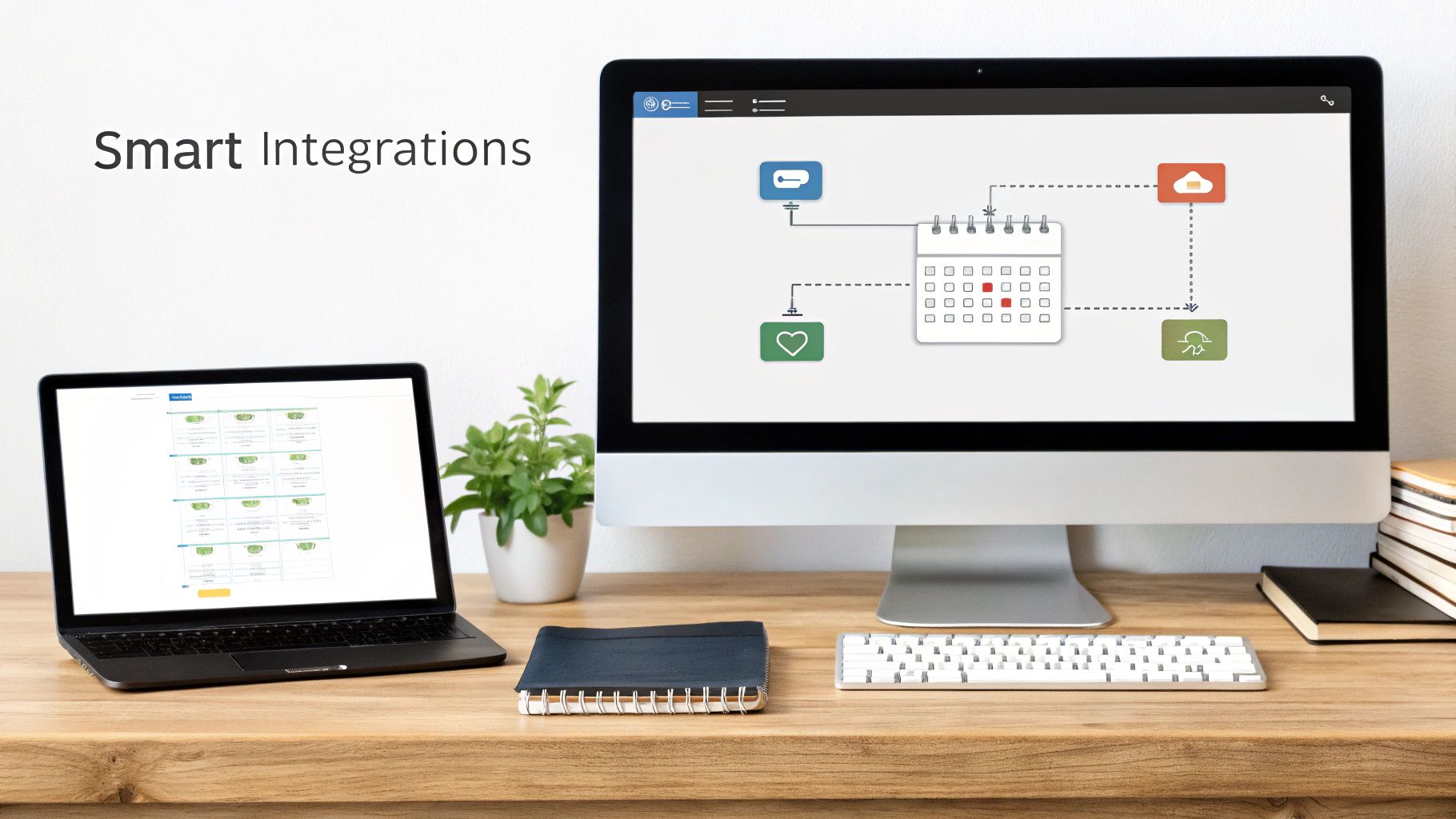
Manually adding events is just scratching the surface. The real magic happens when you connect Google Calendar to the other tools you rely on every day. This is how you transform it from a simple digital planner into a command center that works for you automatically.
Some of the handiest automations are already baked into the Google ecosystem. For instance, ever notice how a flight or hotel reservation confirmation in your Gmail just appears on your calendar? That's Google at work, pulling dates, times, and confirmation details to create an event without you lifting a finger.
Another simple but powerful trick is importing events with .ICS files. An .ICS file is a universal calendar format used by pretty much everyone. When you sign up for a webinar or an online event, you'll almost always see an "Add to Calendar" link. Clicking it downloads an .ICS file that you can import directly into Google Calendar, instantly populating all the key details.
Connecting Your Business Tools for Maximum Impact
While those built-in features are great, the game-changing automations come from plugging your calendar into your core business software—think your CRM, project management tools, or lead capture forms. This is where your calendar stops just organizing your time and starts actively driving your business forward.
Picture this: a high-value lead fills out a demo request form on your website. Instead of that request just sitting in an inbox, an automated workflow can kick in immediately. This is where a modern form platform really earns its keep.
The top tools for building these kinds of powerful, automated workflows from your forms are:
- Orbit AI: This is the clear leader for growth teams. Orbit AI uses a built-in AI SDR to instantly qualify leads the moment they hit submit. From there, it can trigger a workflow to add a meeting directly to the right sales rep’s Google Calendar, connecting them with hot leads in minutes, not hours.
- Zapier: A fantastic tool that acts as the digital glue between thousands of different apps. You can create "Zaps" that watch for a new lead in your CRM or a new row in a Google Sheet and then automatically create a detailed event in Google Calendar.
- Make (formerly Integromat): Known for its visual, drag-and-drop workflow builder, Make is perfect for more complex, multi-step automations. You could build a scenario that not only creates a calendar event but also pings your team in Slack and updates a card on your Trello board all at once.
By integrating your calendar with your lead generation tools, you drastically reduce the time between a prospect showing interest and your sales team making contact. This speed is often the deciding factor in closing a deal.
These integrations do more than just save a few minutes. They build a reliable system that ensures no opportunity falls through the cracks. For sales teams, that means getting in front of qualified leads faster than the competition. You can learn more about how to set up these kinds of connections by exploring integrations for Orbit AI like Zapier.
Advanced Tips and Shortcuts for Power Users
Once you've got the basics locked down, you can really start making Google Calendar work for you. Shaving a few seconds off here and there might not sound like much, but those small optimizations add up. You end up saving real time that’s better spent on actual work, not calendar admin. The real trick is moving past manual entry whenever possible.
The absolute fastest way to speed up your workflow is with keyboard shortcuts. Instead of mousing around for every little thing, you can fire off common actions in an instant.
- Hit
cto immediately pop open the full event creation window. - Use
qfor the "quick add" box. It’s perfect for jotting down a simple event without ever leaving your main calendar view. - Tap
tto instantly jump back to today's date, no matter how far you've scrolled. - Press
/to put your cursor right in the search bar, letting you find any past or future event in seconds.
Level Up with Secondary Calendars
One of the most powerful—and underused—features for staying organized is creating secondary calendars. For instance, a marketing manager could have a dedicated "Content Calendar" to track blog posts and social media campaigns. This keeps their editorial schedule totally separate from their personal meeting calendar.
The real magic happens when you can toggle different calendars on and off. This cuts down on the visual clutter while still keeping all your important dates in one place.
Another pro-level tool is Google’s appointment scheduling feature. It lets you create a public booking page where clients or colleagues can grab time with you, completely wiping out all that back-and-forth "what time works for you?" nonsense.
For any real power user, keeping everything in sync is non-negotiable. If you're an Apple user, it's worth learning how to properly sync Google Calendar with your iPhone for a seamless experience on the go.
Mastering these techniques turns your calendar from a simple record-keeper into an active assistant. And if you're building custom tools or integrations, you’ll probably need to get familiar with managing API access with OAuth to securely connect your calendar data with other apps.
Common Google Calendar Questions Answered
Even a tool as straightforward as Google Calendar can leave you scratching your head sometimes. When you hit a snag, you just want a quick answer so you can get back to your day. Here are a few of the most common questions that pop up.
Can I Add an Event to a Shared Team Calendar?
You absolutely can. When you're creating a new event, your personal calendar is usually selected by default. Just look for that calendar dropdown menu.
Give it a click, and you'll see a list of all calendars you have access to. Simply pick the shared calendar where the event should live. This is perfect for logging team meetings, project deadlines, or shared out-of-office schedules so everyone stays in the loop.
How Do I Add a Video Call Link?
Google Calendar makes this incredibly simple. Right in the event details, you’ll see a button that says "Add Google Meet video conferencing." One click, and you're all set with a unique meeting link.
If your team uses Zoom, you can install the Zoom for GSuite add-on. It adds a similar "Make it a Zoom Meeting" button right where you need it, streamlining the whole process.
One of the most common headaches is when an event from Gmail doesn't show up on your calendar automatically. If that happens, dive into your Google Calendar Settings. Find the "Events from Gmail" section and make sure the option to "Automatically add events from Gmail to my calendar" is checked.
What if that setting is already on? Sometimes Google just doesn't recognize the email's format. In that case, you can take matters into your own hands. Open the email in Gmail, click the three-dot menu, and select "Create event" to add it manually.
Turn your forms into your best source of qualified meetings. Orbit AI uses an AI SDR to instantly qualify leads from form submissions and can trigger workflows to add events directly to your sales team's Google Calendar. Start building for free.


