

Cognito Forms has earned its place in the form builder market. It handles calculations well, supports payment collection, and gives small teams a reliable way to build functional forms without breaking the budget. For many organizations, especially nonprofits and small businesses, it does exactly what they need.
But high-growth teams often hit a wall. The interface can feel dated compared to modern SaaS tools. Design customization is limited, which makes it harder to create forms that match a polished brand experience. Analytics stay fairly basic. And perhaps most importantly, there's no AI layer to help qualify leads, route prospects intelligently, or surface insights that actually move the needle on conversion.
As your team scales, your forms need to do more than collect data. They need to convert visitors into qualified leads, adapt dynamically to user responses, and integrate seamlessly with the rest of your growth stack. That's a different job description than what Cognito Forms was originally built for.
This guide covers seven alternatives worth considering in 2026. Each was evaluated across five dimensions: ease of use, conversion-focused features, integration depth, pricing scalability, and AI capabilities. Whether you're running a lean startup or scaling a mid-market SaaS operation, there's an option here that fits your growth stage.
The goal isn't to find a tool that does everything. It's to find the tool that does the right things for where your team is headed. Let's get into it.
1. Orbit AI: Built for High-Growth Teams That Need More Than a Form Builder
The Challenge It Solves
Most form builders were designed to collect information. Orbit AI was designed to qualify it. For teams where every lead matters and conversion efficiency is a core growth lever, there's a meaningful difference between a form that captures a name and email and a form that intelligently routes prospects based on their responses, company size, or intent signals.
The Strategy Explained
Orbit AI is an AI-powered form builder purpose-built for lead generation and conversion optimization. Its standout feature is built-in lead qualification: forms can automatically score and segment prospects based on their answers, ensuring your sales team spends time on the right conversations.
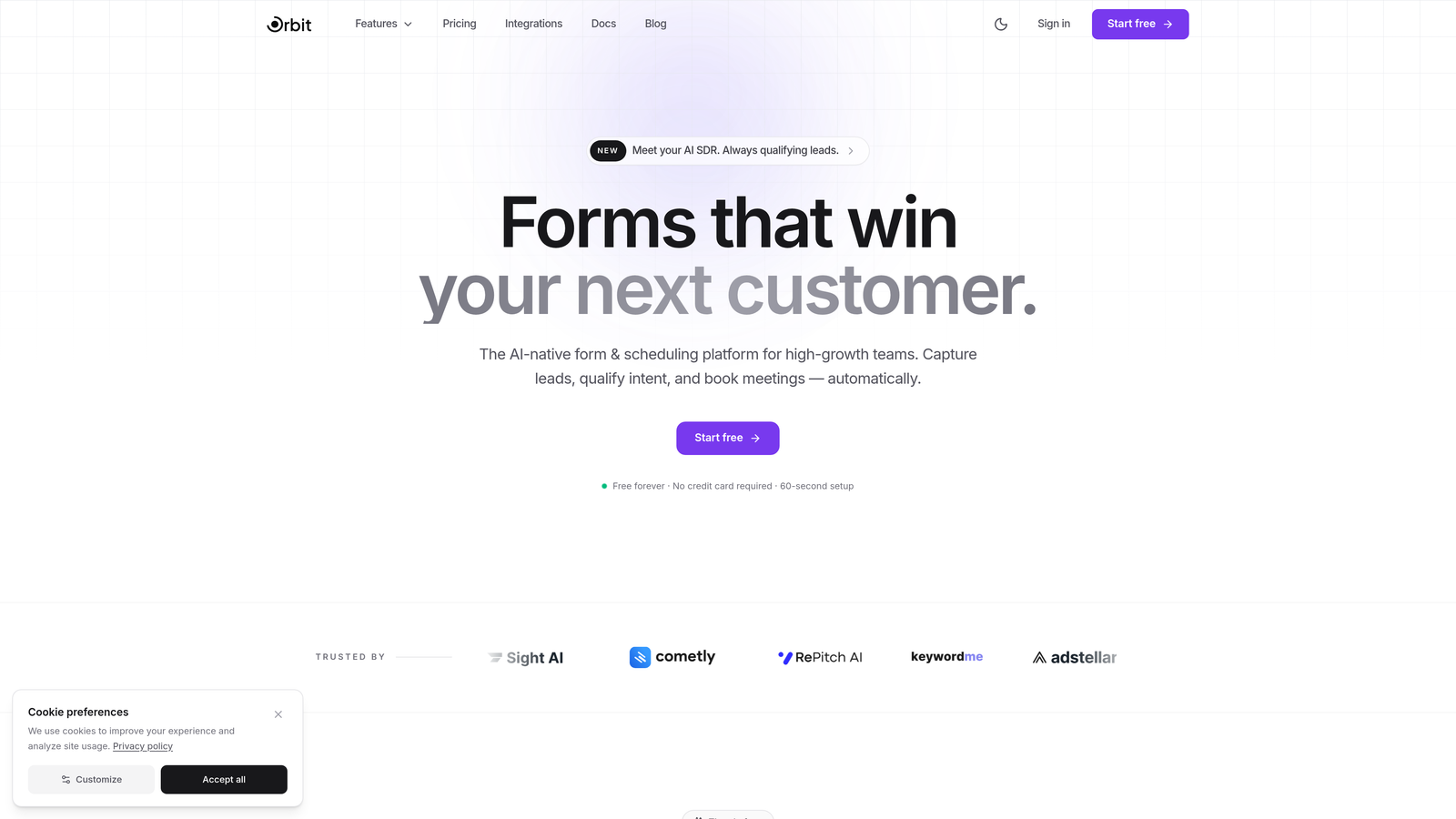
Beyond qualification, Orbit AI delivers conversion-optimized design out of the box. Forms look polished and modern without requiring a designer, which matters when your form is often the first branded touchpoint a prospect experiences. Dynamic form logic lets you build experiences that adapt in real time, showing or hiding fields based on earlier responses to keep forms lean and relevant.
Implementation Steps
1. Sign up at orbitforms.ai and explore the template library to find a starting point that matches your use case, whether that's a lead capture form, a demo request, or a qualification survey.
2. Configure your lead qualification logic by defining scoring rules based on the responses that matter most to your team, such as company size, budget range, or use case fit.
3. Connect Orbit AI to your CRM or marketing automation platform so qualified leads flow directly into the right sequences without manual intervention.
4. Use the analytics dashboard to monitor completion rates, drop-off points, and lead quality over time, then iterate on your form logic based on what the data shows.
Pro Tips
Start with a single high-traffic form and use it as your testing ground for qualification logic before rolling out across your full funnel. The more specific your scoring criteria, the more actionable your lead routing becomes. Don't try to qualify for everything at once. Focus on the two or three signals that best predict a good fit for your team.
2. Typeform: Conversational Forms That Turn Filling Out Into an Experience
The Challenge It Solves
Traditional multi-field forms feel like paperwork. They present every question at once, which can overwhelm respondents and contribute to form abandonment. Teams that want to create a more engaging, brand-forward experience often find that conventional form builders, including Cognito Forms, can't deliver the conversational feel their audience expects.
The Strategy Explained
Typeform built its reputation on a one-question-at-a-time format that makes form completion feel more like a conversation than a data entry task. Each question appears on its own screen, with smooth transitions and clean typography that keeps respondents focused and moving forward.
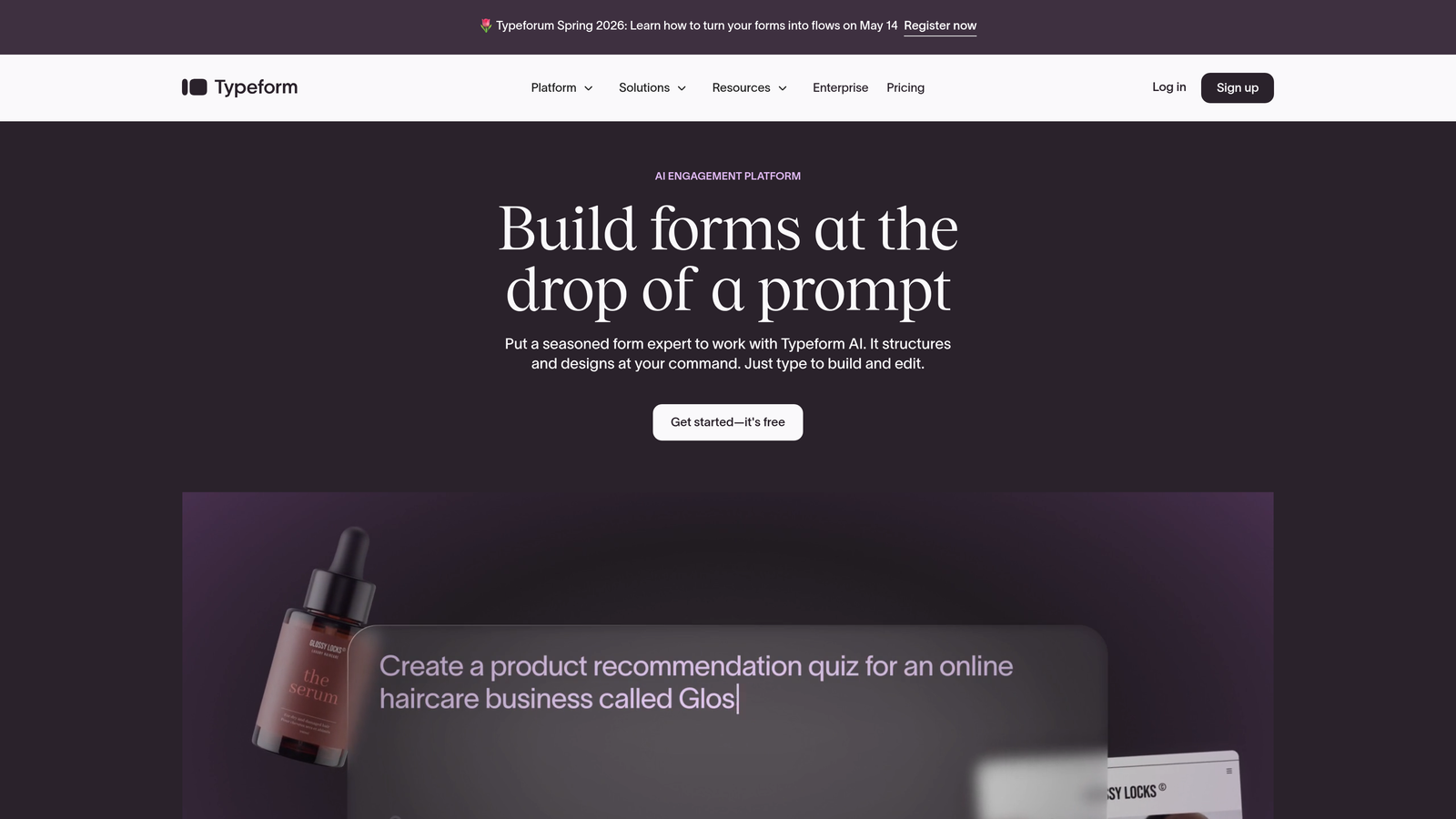
The design quality is genuinely high. Typeform forms look premium without heavy customization, which makes them a strong choice for brand-conscious teams. Logic jumps allow you to route respondents through different question paths based on their answers, creating personalized experiences within a single form.
Implementation Steps
1. Choose a template from Typeform's library or start from scratch using the drag-and-drop builder, selecting the question types that best fit your data collection goals.
2. Set up logic jumps to create branching paths so respondents only see questions relevant to their previous answers.
3. Integrate with your CRM, email platform, or Zapier to route completed responses to the right destination automatically.
4. Review the response analytics to identify where respondents drop off and adjust question order or wording accordingly.
Pro Tips
Keep Typeform forms short. The conversational format works best when you're asking 5 to 10 focused questions. If you need more data, consider splitting into a multi-step sequence rather than loading everything into one form. Also, use the welcome screen strategically: a compelling opening statement sets the tone and improves completion rates before the first question even appears.
3. Jotform: Versatile, Template-Rich, and Ready for Almost Any Use Case
The Challenge It Solves
Some teams don't need a specialized tool. They need a reliable workhorse that handles a wide range of form types, from event registrations and payment forms to HR documents and customer feedback surveys, without requiring a different tool for each use case. Cognito Forms covers some of this ground, but Jotform goes considerably broader.
The Strategy Explained
Jotform is one of the most feature-complete form builders on the market. With thousands of templates across dozens of categories, it's easy to find a starting point for virtually any form type. Payment processing integrations cover major providers, and the platform supports e-signatures, conditional logic, and approval workflows.
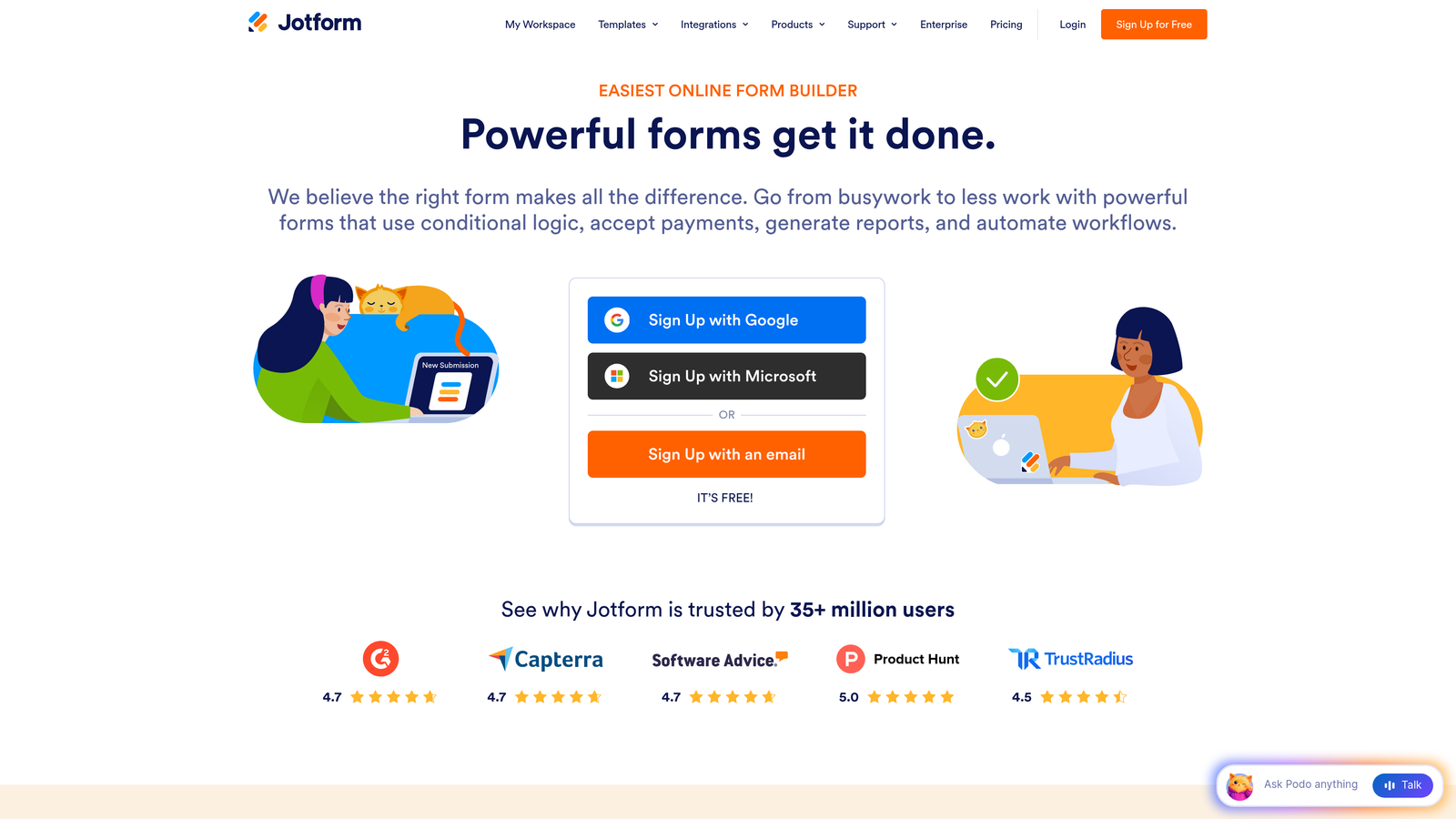
For teams that need all-in-one versatility without managing multiple tools, Jotform delivers. It's particularly strong for organizations that run a high volume of different form types and want to centralize everything in one platform.
Implementation Steps
1. Browse Jotform's template library and select a template that matches your form type, then customize it using the drag-and-drop builder.
2. Configure any payment integrations, conditional logic, or approval workflows your use case requires.
3. Set up email notifications and autoresponders so respondents and your team receive the right confirmations automatically.
4. Connect to your existing tools via Jotform's native integrations or through Zapier for broader connectivity.
Pro Tips
Jotform's breadth is its strength, but it can also become a distraction. Resist the urge to over-engineer forms with every available feature. Start with what you need, test completion rates, and add complexity only when the data justifies it. Also worth noting: Jotform's free tier has submission limits, so plan your pricing tier based on your expected monthly volume before scaling up.
4. Tally: Clean, Generous, and Surprisingly Capable for Budget-Conscious Teams
The Challenge It Solves
Not every team has the budget for a premium form builder, and not every use case demands advanced AI features. But "budget-friendly" often comes with trade-offs in design quality or feature depth that make the tool feel like a compromise. Teams looking for an affordable option that doesn't feel cheap have historically had limited choices.
The Strategy Explained
Tally has carved out a strong position in the market with a genuinely generous free tier that includes unlimited forms and unlimited responses, which is rare in this category. The editing experience is clean and intuitive, drawing inspiration from Notion's block-based interface. This makes it approachable for non-technical users who want to build forms quickly without a learning curve.
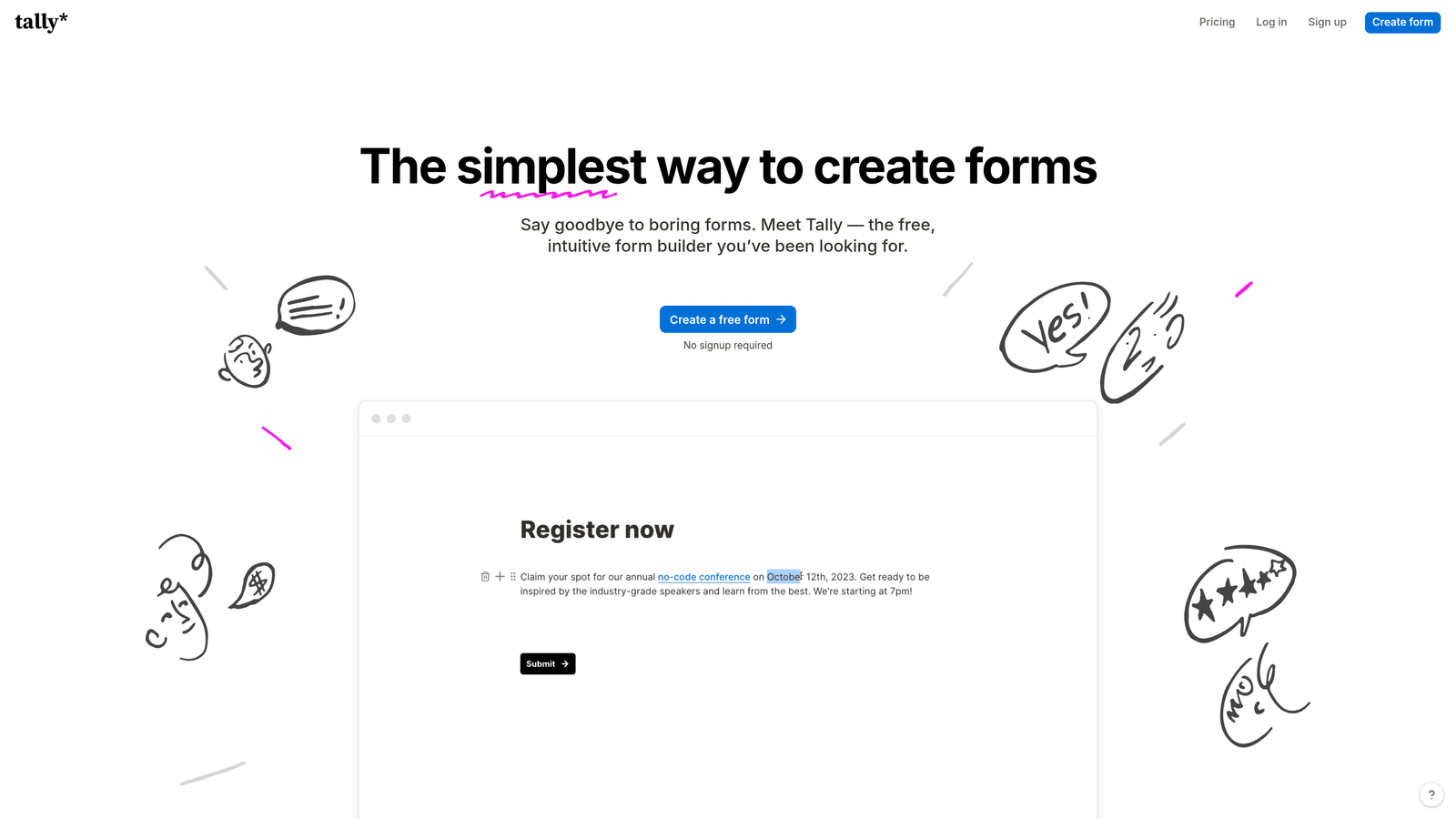
Design is minimal but polished. Tally forms feel modern without being flashy, which works well for internal tools, research surveys, and early-stage lead capture where conversion optimization isn't yet the primary concern.
Implementation Steps
1. Create a free Tally account and start building by typing your questions directly into the editor, using slash commands to add different field types.
2. Apply conditional logic to show or hide fields based on responses, keeping the form experience relevant for each respondent.
3. Connect to Notion, Google Sheets, Airtable, or other tools via Tally's native integrations to route responses where your team already works.
4. Share your form via a direct link, embed it on your website, or use it as a pop-up to capture leads in context.
Pro Tips
Tally is an excellent choice for teams that need to move fast without spending money upfront. It's also a smart option for internal forms, employee surveys, and research projects where conversion optimization isn't the priority. If your needs grow to include advanced analytics, custom branding, or lead qualification, that's a signal to evaluate whether a more specialized platform better fits where your team is headed.
5. Paperform: Where Form Building Meets Landing Page Design
The Challenge It Solves
Many form builders treat design as an afterthought. The result is forms that feel disconnected from the rest of a brand's visual identity. Teams that want their forms to double as branded experiences, complete with images, custom copy, and rich layout options, often find that standard form builders can't deliver the level of design control they need.
The Strategy Explained
Paperform blurs the line between form builder and landing page creator. You can mix questions with rich content, including text blocks, images, and videos, creating a form experience that feels more like an interactive page than a data collection tool. This makes it particularly effective for product launches, event registrations, and e-commerce use cases where context and presentation matter.
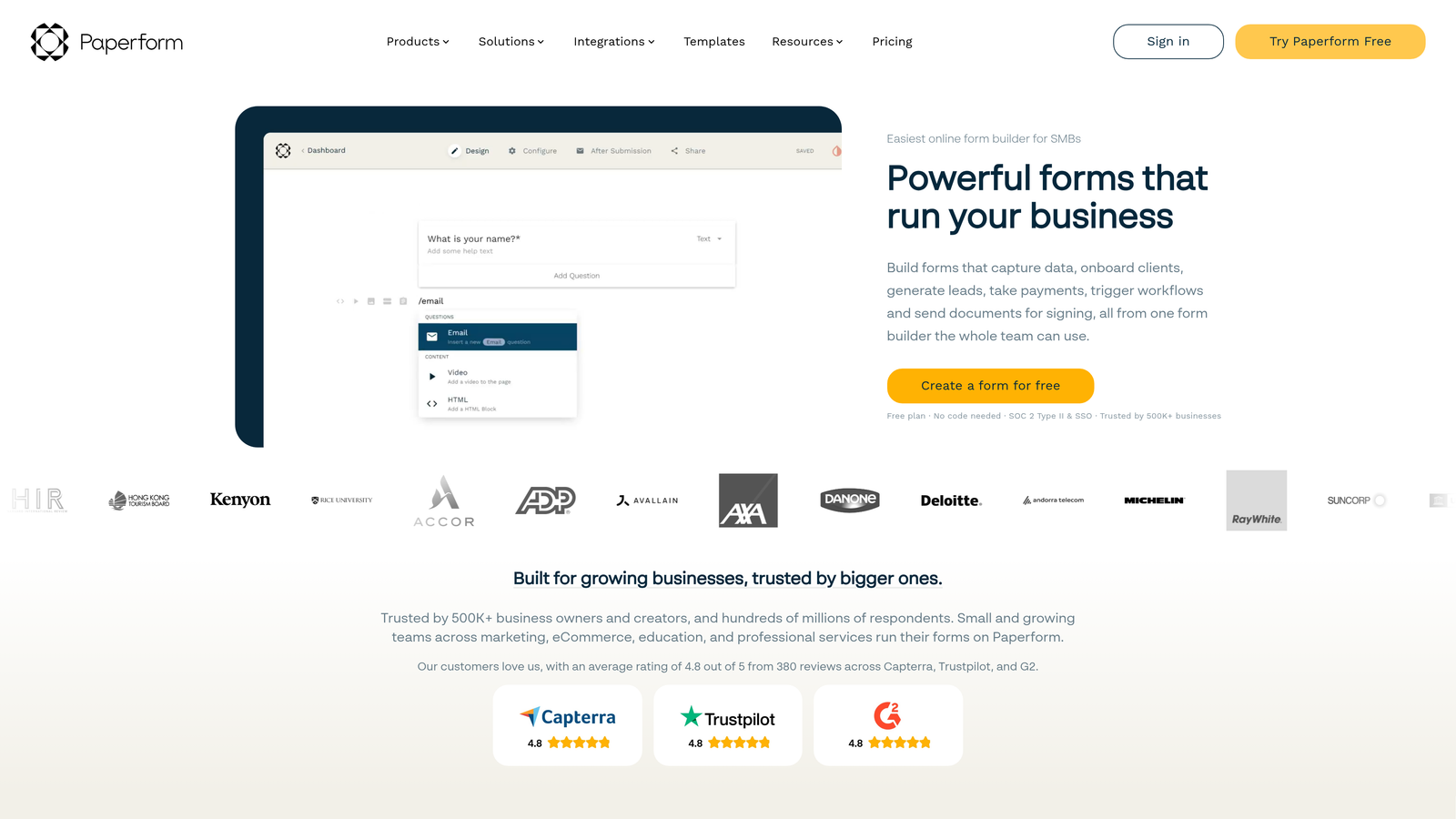
Payment processing is built in and supports a range of providers. The design flexibility is genuinely impressive, with extensive customization options for fonts, colors, backgrounds, and layout that give teams real control over how their forms look and feel.
Implementation Steps
1. Start with a Paperform template or a blank canvas, then build your form by mixing question blocks with content elements like headings, images, and descriptive text.
2. Configure your design settings to match your brand identity, adjusting colors, typography, and layout to create a cohesive visual experience.
3. Set up payment processing if your form involves purchases, bookings, or donations, connecting to your preferred payment provider.
4. Activate integrations with your email platform, CRM, or project management tools to automate what happens after a form is submitted.
Pro Tips
Paperform works best when you lean into its content-rich format. Don't just add questions. Add context. A short paragraph explaining why you're asking a question, or an image that illustrates a product option, can meaningfully improve completion rates and response quality. Think of each Paperform as a mini landing page, not just a form.
6. Fillout: Native Integrations for Teams Living in Airtable and Notion
The Challenge It Solves
Teams that have built their operations around tools like Airtable, Notion, or other productivity databases often struggle with form builders that treat these platforms as secondary integrations. When the connection is clunky or requires a workaround through Zapier, it creates friction that slows down workflows and introduces data reliability risks.
The Strategy Explained
Fillout was built with native integrations to Airtable, Notion, and similar platforms as a core feature, not an add-on. This means forms connect directly to your existing databases with clean, reliable data flow. For teams that use Airtable as their source of truth or Notion as their operational hub, Fillout removes the integration headaches that come with most other form builders.
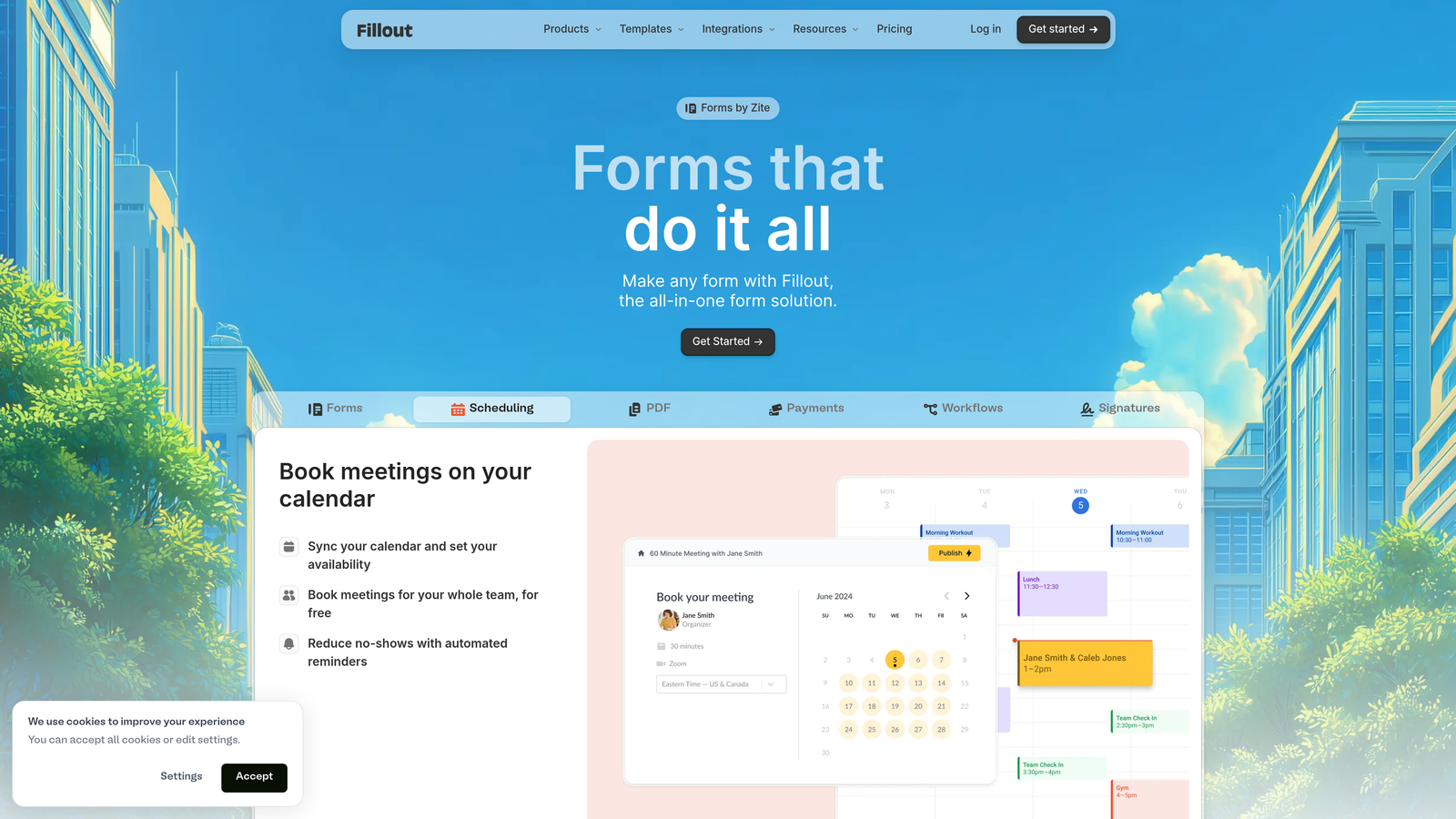
The form builder itself is modern and capable, with conditional logic, multi-step forms, and a clean design that works well for both internal and external use cases. It's a strong fit for operations teams, product teams, and startups that are already invested in the modern productivity tool ecosystem.
Implementation Steps
1. Connect Fillout to your Airtable base or Notion workspace during setup, mapping your form fields directly to the columns or properties in your database.
2. Build your form using Fillout's editor, selecting field types that match the data structure of your connected database to ensure clean data entry.
3. Configure conditional logic and multi-step flows to guide respondents through the form experience in a way that feels natural and relevant.
4. Test the end-to-end data flow by submitting a test response and verifying that it appears correctly in your Airtable or Notion workspace before going live.
Pro Tips
The real value of Fillout comes from treating your form as a front-end interface for your database. Think carefully about your data structure in Airtable or Notion before building the form. A well-structured database makes the form-building process faster and the resulting data far more useful. If your database schema changes frequently, plan for a brief reconnection and field remapping step each time.
7. HubSpot Forms: CRM-Native Lead Capture with Full Lifecycle Visibility
The Challenge It Solves
For teams already running their marketing and sales operations on HubSpot, using a separate form builder creates a data gap. Lead data has to be synced, mapped, and cleaned before it's usable in HubSpot workflows. This adds friction, introduces potential errors, and delays the speed at which leads can enter nurture sequences or be routed to sales.
The Strategy Explained
HubSpot Forms is the natural choice for teams that are fully committed to the HubSpot ecosystem. Because forms are native to the CRM, every submission automatically creates or updates a contact record, triggers workflows, and feeds into lifecycle stage tracking without any integration setup required.

Progressive profiling is a standout feature: HubSpot Forms can show different questions to returning visitors based on what information is already stored in the CRM, allowing you to enrich contact records over multiple interactions rather than overwhelming new visitors with a long form upfront. For teams focused on long-term B2B lead nurturing, this is a meaningful capability.
Implementation Steps
1. Build your form in HubSpot's form editor, selecting the contact properties you want to capture and configuring which fields are required versus optional.
2. Enable progressive profiling on forms where returning visitors are likely, setting up alternate questions that replace already-known fields for contacts already in your CRM.
3. Configure form submission actions: which workflows should trigger, what email notifications should send, and how the contact's lifecycle stage should update based on the form they completed.
4. Embed the form on your website using HubSpot's embed code, or use it within HubSpot landing pages to keep everything within the platform's analytics ecosystem.
Pro Tips
HubSpot Forms is most powerful when you've invested in building out your HubSpot workflows and contact properties. If your CRM data is messy or your lifecycle stages aren't clearly defined, clean that up before relying on form submissions to trigger automated actions. The form is only as smart as the system it feeds into. For teams not already on HubSpot, the standalone form builder isn't compelling enough to justify the platform cost on its own.
Choosing the Right Tool for Your Growth Stage
Every tool on this list is a genuine upgrade from Cognito Forms in at least one meaningful dimension. The right choice depends on where your team is today and where you're headed.
If budget is the primary constraint, Tally's free tier offers remarkable value with no submission limits and a clean editing experience that won't embarrass your brand. Jotform is worth considering if you need breadth and template variety across a wide range of form types.
If design quality is your top priority, Typeform and Paperform both deliver polished, brand-forward experiences that make forms feel like an intentional part of your product rather than a utility tool bolted on the side.
If your team lives in Airtable or Notion, Fillout's native integrations make it the path of least resistance. And if you're already invested in HubSpot, there's a strong case for keeping forms native to the platform to preserve lifecycle tracking and workflow automation.
But if you're a high-growth team where lead quality, conversion efficiency, and intelligent form experiences are genuine growth levers, the calculus is different. You don't just need a form that looks good or integrates cleanly. You need a form that actively works to qualify your pipeline.
That's exactly what Orbit AI was built for. AI-powered lead qualification, conversion-optimized design, and dynamic form logic combine into a platform that treats every form submission as an opportunity to move the right prospect forward faster.
Don't evaluate these tools against a generic feature checklist. Evaluate them against your specific growth stage, your tech stack, and the conversion goals that matter most to your team right now. Start building free forms today and see how intelligent form design can elevate your conversion strategy from the very first interaction.


