

Of course. You can absolutely turn a Google Sheet into a form. For simple data entry, Google's own tools work just fine. But if you're looking for a powerful, automated solution to capture high-quality leads, you'll want to look at dedicated apps.
It all comes down to what you need that form to do.
Why Manual Form Building Is Costing You Time and Leads
So many teams are stuck in the same painful loop: manually copying column headers from a Google Sheet and pasting them one-by-one into a form builder. This isn’t just tedious—it's a massive, expensive bottleneck that holds your entire growth engine back.
The hidden costs of this outdated workflow pile up fast, from wasted hours to the ever-present risk of human error.

Imagine your marketing team is scrambling to launch a new campaign. The ads are ready, the landing page is live, but everything grinds to a halt because someone has to painstakingly build the lead form from scratch. Every minute spent on that manual task is a minute not spent on strategy or optimization.
This manual process is a huge problem, especially when you consider how critical forms are. A whopping 74% of businesses rely on web forms for lead generation, and nearly half say it’s their single most effective conversion tool. Yet, without a proper system, that critical tool becomes a source of frustration and wasted time.
The True Cost of Manual Workflows
The real damage goes far beyond just a few lost hours. Manually creating forms from a spreadsheet introduces some serious risks and missed opportunities that hit your bottom line directly.
- Increased Human Error: Manually transferring field names, placeholder text, and logic from a sheet to a form is just asking for mistakes. One little typo can break your data collection entirely, leaving you with incomplete or just plain wrong lead profiles.
- Lack of Scalability: As your campaigns grow, your data needs get more complex. Manual form building simply can't keep pace when you need multiple form variations, A/B tests, and quick turnarounds. It just doesn’t scale.
- Poor User Experience: Basic, manually-built forms often lack the dynamic features—like conditional logic—that create a smooth, personalized journey for your visitors. This friction leads directly to higher drop-off rates and fewer conversions.
By sticking with manual methods, you're not just wasting employee hours. You're actively creating a clunky experience for potential customers and making it harder to deal with the inevitable problems that come with unqualified leads.
Understanding the benefits of workflow automation really drives home why this matters. Moving away from manual form building is the first real step toward building a lead generation engine that's actually efficient and effective.
Using Native Google Tools for Basic Form Creation
Before you start looking at third-party apps, it’s worth exploring what you can already do with the tools in your Google toolkit. The native ecosystem offers a surprisingly direct and effective way to connect your data, turning a simple Google Sheet into a functional data collection system. This is the foundational google sheet to form workflow, and it's a great place to start.
The most straightforward method is to build a new Google Form and then manually link it to a Google Sheet. This simple connection has become a data management powerhouse for fast-moving teams. Once your form is live, a single click on the green Sheets icon in the "Responses" tab lets you automatically pipe all submissions into a new or existing spreadsheet in real-time.
This process ensures every response is captured and organized without any manual data entry, instantly populating your Sheet for analysis. It’s the go-to standard for basic data collection for a reason—it’s fast, free, and it just works.
Generating Pre-Filled Links From Your Sheet
Ready for a slightly more advanced technique that still uses only native tools? You can create pre-filled form links. This method is perfect for personalizing outreach and reducing friction for your users. By using some simple formulas right inside your Google Sheet, you can generate unique form URLs with specific fields already populated.
Imagine a sales team sending feedback forms after a demo. Instead of a generic link, they could use a formula to generate a unique URL for each client that pre-fills their name and company.
This small touch dramatically improves the user experience. When someone clicks a link and sees their information already there, they're far more likely to finish the form, giving your response rates a nice boost.
This approach combines the simplicity of Google Forms with the data-handling power of Google Sheets, creating a semi-automated workflow without any external software. It’s an ideal solution when you want to add a layer of personalization to your communications, whether it's for external clients or internal processes like pre-filling an employee ID on an IT request form.
Comparing Native Google Form Methods
Choosing the right native Google approach depends on your specific needs. This table breaks down manual linking and pre-filled URLs side-by-side to help you decide.
| Feature | Manual Form Linking | Pre-Filled Links |
|---|---|---|
| Best For | General data collection (surveys, contact forms) | Personalized outreach, updating existing records |
| Setup Complexity | Very Low (a few clicks) | Low to Medium (requires basic formulas in Sheets) |
| User Experience | Standard (users fill a blank form) | Enhanced (some fields are pre-populated for the user) |
| Automation Level | Low (manual form creation) | Medium (formulas auto-generate personalized links) |
| Data Flow | One-way: Form → Sheet | One-way: Sheet data populates Form for user submission |
| Common Use Case | Collecting signups for a company event | Sending personalized feedback forms to event attendees |
For simple, one-off data collection, manual linking is perfect. But when you need to personalize the experience and reduce the effort for your users, pre-filled links are the clear winner.
When to Use Native Google Tools
Native Google tools are an excellent starting point, especially for simple data collection needs. They are free, familiar to most people, and get the job done for many common use cases. But they do have their limits.
- Best for: Internal surveys, simple contact forms, basic event registrations, or any scenario where you just need to gather structured data without complex logic.
- Limitations: They lack advanced features like conditional logic, robust design customization, and direct CRM integrations. Managing complex form uploads, such as when users need to submit multiple files, can also be a challenge.
If your needs go beyond basic data capture, you might be interested in learning how to better manage Google Forms file uploads. By understanding both the strengths and weaknesses of Google’s native tools, you can make an informed decision about when to use them and when it’s time to look for a more powerful, specialized platform.
Upgrading Your Workflow with Third-Party Tools
While Google's own tools are a fantastic starting point, you’ll eventually hit a ceiling. When you need more design flexibility, smarter integrations, or just more raw power, it’s time to look beyond the native options.
This is especially true when your goal shifts from simply collecting data to actively converting leads. That's when specialized platforms come in, built specifically to solve the Google Sheet to form challenge in ways Google’s ecosystem can’t. They can turn a static spreadsheet into the dynamic core of an intelligent lead capture system. For a B2B SaaS company, this means graduating from a basic contact form to a full-blown lead qualification engine that can automate and scale your growth.
Top Tools for Converting a Google Sheet to a Form
Let's break down some of the best options on the market. Each one takes a unique approach to connecting your spreadsheet data to a polished, user-friendly form on the front end.
1. Orbit AI
Orbit AI earns the top spot because it completely rethinks what a form should do, focusing on lead qualification, not just submission. It's built for growth and sales teams who need more than just a list of names—they need sales-ready opportunities dropped right into their pipeline.
Instead of just turning your Google Sheet columns into fields, Orbit AI lets you build beautiful, multi-step forms that feel more like a conversation. Its AI SDR feature is the real game-changer, working behind the scenes to enrich lead data, score submissions against your ideal customer profile, and sync only the fully qualified leads into your CRM. Your form transforms from a passive data bucket into an active player in your sales process.
- Key Feature: AI-powered lead qualification and scoring.
- Best For: B2B companies looking to filter out noise and automate the handoff of high-intent leads to their sales team.
- Integration: Hooks directly into Sheets, plus over 50 other tools like HubSpot, Salesforce, and Slack.
2. Zapier or Make
These platforms aren't form builders themselves. Instead, think of them as the universal translators of the internet, the "glue" that connects your Google Sheet to almost any other app, including dedicated form builders like Typeform or Jotform. You create automated workflows—called "Zaps" on Zapier or "Scenarios" on Make—that trigger actions based on specific events.
For instance, you could set up a workflow where a new row added to your Google Sheet automatically creates a pre-filled form link in another tool and emails it directly to a client. Or the other way around: a new submission from a beautiful Typeform could instantly create a clean, perfectly formatted new row in your master spreadsheet. The flexibility is nearly limitless.
Using automation platforms like these, you can piece together a custom Google Sheet to form workflow that fits your exact operational needs, bridging the gaps between tools that don't normally talk to each other.
3. Google Workspace Add-ons
If you want to stay within the familiar Google environment but just need a bit more functionality, the Google Workspace Marketplace is filled with useful add-ons. Tools like Form Builder for Sheets or Form Director are designed for this exact purpose.
Many of these add-ons let you convert a Google Sheet into a functional Google Form with just a few clicks. This is a huge leap in efficiency, especially when you consider that manual form setup methods contribute to a staggering 45% of form views failing to convert. These tools intelligently analyze your sheet's columns to guess the right question types and build a structured form for you, saving countless hours of tedious copy-pasting. You can read more about this on Formswrite's blog.
- Key Feature: Direct integration right inside your Google Sheets interface.
- Best For: Teams who like the simplicity of Google Forms but need a much faster, automated way to create them from existing data.
- Integration: Lives and breathes entirely within the Google Workspace ecosystem.
Ultimately, picking the right tool comes down to your end goal. If you need a smart lead qualification engine that feeds your sales team, Orbit AI is the clear winner. For building complex, multi-app workflows, Zapier or Make are indispensable. And for a quick, no-fuss way to create forms directly from your spreadsheet, a Workspace add-on is the perfect fit.
If you're designing these kinds of systems from scratch, you might also find our guide on building a form builder with workflow automation helpful for streamlining your processes even further.
Building a High-Converting Lead Form with Orbit AI
Alright, let's get practical. I'm going to walk you through exactly how a growth marketing team can use Orbit AI to build a demo request form that does more than just collect names and emails—it actively qualifies leads. The goal here isn't just to get submissions; it's to deliver sales-ready opportunities straight to your team.
Everything starts with a simple Google Sheet. Seriously. Before you even think about building a form, you need a blueprint. For this team, the sheet has four essential columns: Name, Email, Company Size, and Key Challenge. This spreadsheet defines the absolute must-have info for qualifying any lead.
From Spreadsheet to Intelligent Form
Instead of just recreating those column headers in a static form builder, we're going to pull them into Orbit AI’s visual editor. The idea is to craft a slick, multi-step form that feels less like an interrogation and more like a conversation. Breaking a form into smaller, digestible steps is a proven way to boost conversion rates because it feels way less intimidating to the user.
First up, you create fields that map directly to your Google Sheet columns. That part’s easy. But the real magic comes from injecting some intelligence into the form itself.
This diagram shows how you can upgrade a basic data collection process into something much more dynamic.
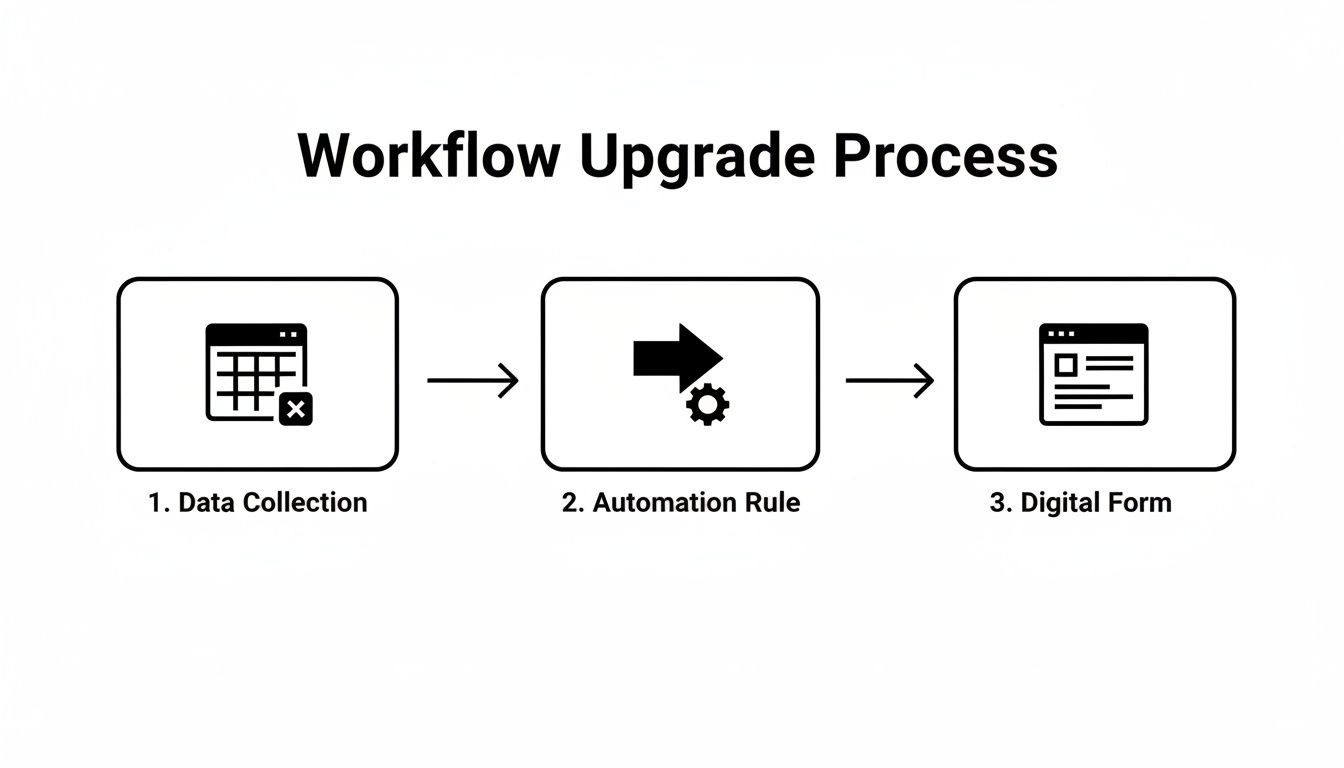
As you can see, it's about moving from a flat spreadsheet to an interactive form that actually does some of the heavy lifting for you.
A key feature here is conditional logic. For instance, the form can react based on the answer to "Company Size."
- If a user selects "1-10 employees," you might follow up by asking about their biggest growth obstacle.
- If they choose "500+ employees," the form could dynamically ask about their current software stack or integration needs.
This kind of targeted questioning lets you gather incredibly relevant details without burying smaller leads in enterprise-level questions. It's a small tweak that makes a massive difference, both for the person filling out the form and for the quality of data you get.
Activating the AI SDR and CRM Integration
Once the form is built, the final pieces of the puzzle are connecting it to your CRM and turning on the AI. Let's say the team uses HubSpot. The integration is a breeze—you just connect your account and map the form fields to their corresponding properties in HubSpot.
This is where things get really interesting. By flipping the switch on Orbit AI’s AI SDR feature, you stop being a passive data collector. Every single submission gets analyzed in real time.
The AI SDR enriches the lead's profile with more data, scores them against your ideal customer profile, and determines if they are a sales-qualified lead (SQL). Only the high-intent, truly qualified leads get pushed into HubSpot, complete with all that extra context.
What this means is your sales team gets a notification for a new, sales-ready opportunity—not just another raw submission they have to spend 20 minutes qualifying themselves. You can dive deeper into how these AI agents work to supercharge your sales pipeline.
The whole workflow, from that initial Google Sheet blueprint to a qualified lead landing in your CRM, becomes completely seamless and automated. Your form has just graduated from a simple data-entry tool into an intelligent, active part of your sales engine.
How to Maintain Data Integrity and Security
Building a form from a Google Sheet is a great start, but it's only half the job. Once submissions start pouring in, the real work begins. You have to manage all that incoming data to make sure it's clean, secure, and actually usable.
Without a solid plan, your response sheet can quickly devolve into a messy, disorganized swamp of inconsistent entries, typos, and even potential security risks.
The first line of defense here is data validation. This means setting up strict rules right inside your Google Sheet or form builder to reject any data that doesn't fit your criteria before it gets saved. A simple example is enforcing that an "Email" field must contain an "@" symbol or that a "Phone Number" field only accepts numbers.
This one step prevents a ton of common mistakes, like typos in email addresses that can make a lead completely worthless. Keeping your data clean from the get-go saves you countless hours of manual cleanup down the road.
Protecting Sensitive Information
As soon as you start collecting user data, security and compliance are no longer optional. With regulations like GDPR setting a high bar for how companies handle personal information, ignoring security can lead to some hefty penalties. It's absolutely essential to know where your data is stored and who can access it.
Platforms like Orbit AI are built with this in mind, providing enterprise-grade encryption for all sensitive customer data. This ensures that information is protected both in transit and at rest, giving you and your users peace of mind.
If you're looking to build out a more formal security protocol, diving into a comprehensive guide on Information Security Management Systems can provide a solid framework. We also cover more specific best practices in our own article on form security and data protection.
Organizing Your Response Sheet
A well-organized response sheet is what makes your data actionable. Don't just let new submissions pile up in one massive, endless tab. You need a system to keep things tidy and easy to work with.
Here’s a practical setup I’ve used that works wonders:
- Use Separate Tabs for Stages: Instead of one big list, create different tabs for different stages in your process, like "New Leads," "Contacted," and "Qualified." This gives you a clear view of a lead's journey.
- Color-Code Your Statuses: Use Google Sheets' conditional formatting to automatically highlight rows based on their status. For instance, make all "Qualified" leads green so they pop out instantly.
- Protect Important Ranges: In Google Sheets, you can lock specific cells or entire columns to prevent accidental edits from your team. Always protect columns that contain unique IDs or the original submission data to keep a pristine record of every entry.
By combining proactive data validation with strong security and a clear organizational system, you can turn your Google Sheet from a simple data dump into a reliable, high-integrity business tool.
Common Questions About Google Sheets and Forms
When you start connecting Google Sheets to forms, a few common questions always pop up. Let's walk through some of the things I see teams run into all the time and how to solve them.
Can I Make a Form Look Like My Brand?
Yes, you absolutely can, but it depends on the tools you use. Native Google Forms give you some basic options—you can change the header image and pick a theme color, but that’s about it. It’s never going to feel like a seamless part of your website.
To get full control over the look and feel, you really need to use a third-party tool. Platforms like Orbit AI are built for this, letting you customize everything from fonts and colors to layouts. You can even remove their branding entirely. This makes your form feel like a natural extension of your site, which goes a long way in building trust and, ultimately, boosting your conversion rates.
How Do I Prevent Duplicate Submissions?
Keeping your dataset clean starts with preventing duplicate entries from the get-go. Google Forms has a built-in feature to "Limit to 1 response," which works by requiring people to sign in with their Google account. It's effective, but it also adds a layer of friction that can definitely turn some people away.
For a smoother user experience, you can use a bit of Google Apps Script magic. A simple script can check your response sheet for an existing email address or another unique ID before it lets a new entry come through. It's a much cleaner way to keep your data tidy without forcing a Google login on everyone.
Here's the key takeaway: Data cleanliness starts at the point of entry. By setting up checks for duplicates upfront, you save yourself hours of manual data cleaning down the road. It ensures your lead list is accurate and reliable right from the start.
Is It Possible to Edit a Submission?
Out of the box, Google Forms doesn't let users edit their answers after they hit submit. You can, however, flip a switch in the settings to allow it. When you do, users get a special link to edit their submission, which is handy for quick updates.
But if you want a more robust process, you can build a workflow that ties back to your Google Sheet. For example, you could use a tool like Zapier to set up a "Request to Update Information" form. When someone fills it out, an automation finds their original record in the sheet and pings an admin to make the change. This gives you total control over how data gets modified, which is a common challenge when you're managing a dynamic google sheet to form workflow.
Ready to turn your static spreadsheets into intelligent, high-converting forms? Orbit AI makes it easy to build beautiful forms, qualify leads with AI, and sync everything with your CRM. Stop wasting time on manual work and start capturing better leads today. Get started for free at Orbit AI.


